How to Install Claude Code on Windows in 2026 (PowerShell, WSL, and the Path Gotcha).
How to install Claude Code on Windows step-by-step. The two install methods (PowerShell vs WSL), the path issue that breaks half of new setups, and how to verify.
Installing Claude Code on Windows takes about 5 minutes if you pick the right method and about 45 minutes if you don't. There are two real options: PowerShell with Node.js (the fastest path for most people) and WSL2 with Ubuntu (better if you already live in a Linux terminal). A third option, Git Bash, exists but creates more problems than it solves.
Two real install paths, one PATH gotcha. The five-minute version starts here.
I'm Tom. I've installed Claude Code on Windows 11, Windows 10, and WSL on three different machines. Here's the path that actually works without the usual permission and PATH errors.
Can you install Claude Code on Windows?.
Yes. Claude Code runs on Windows natively via PowerShell and Node.js, and it also runs inside WSL2 (Windows Subsystem for Linux 2). Both methods are officially supported. You need a Claude Pro account ($20/month) or Anthropic API credits to authenticate after install.
The two ways to install Claude Code on Windows.
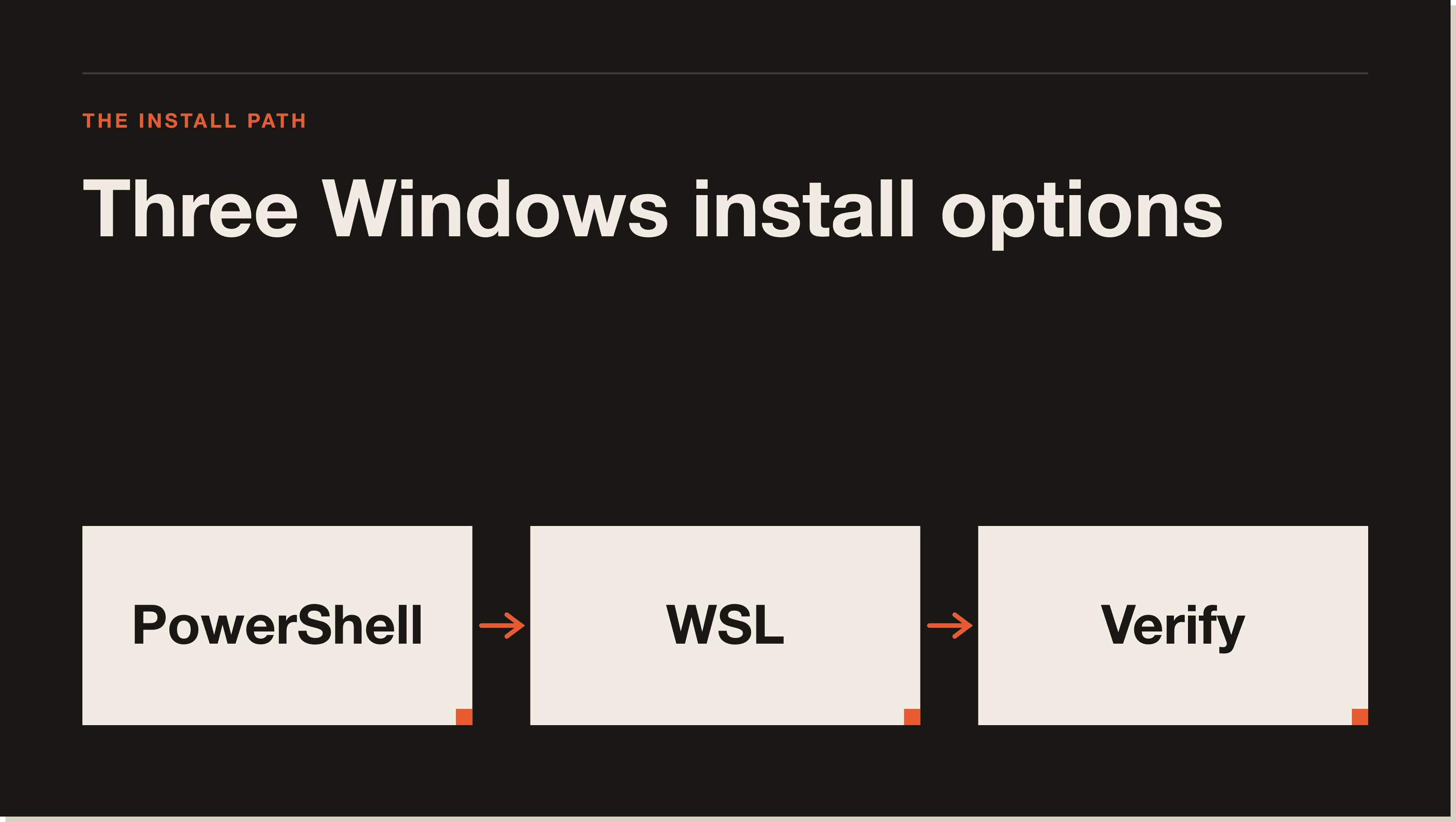
Three moves on Windows. The third one — verify — is the only step most posts forget.
The PowerShell method installs Claude Code directly onto your Windows machine using Node.js. The WSL2 method runs Claude Code inside a Linux environment that lives on your Windows machine. Both produce a working Claude Code setup. The difference is how much Linux tooling you want alongside it.
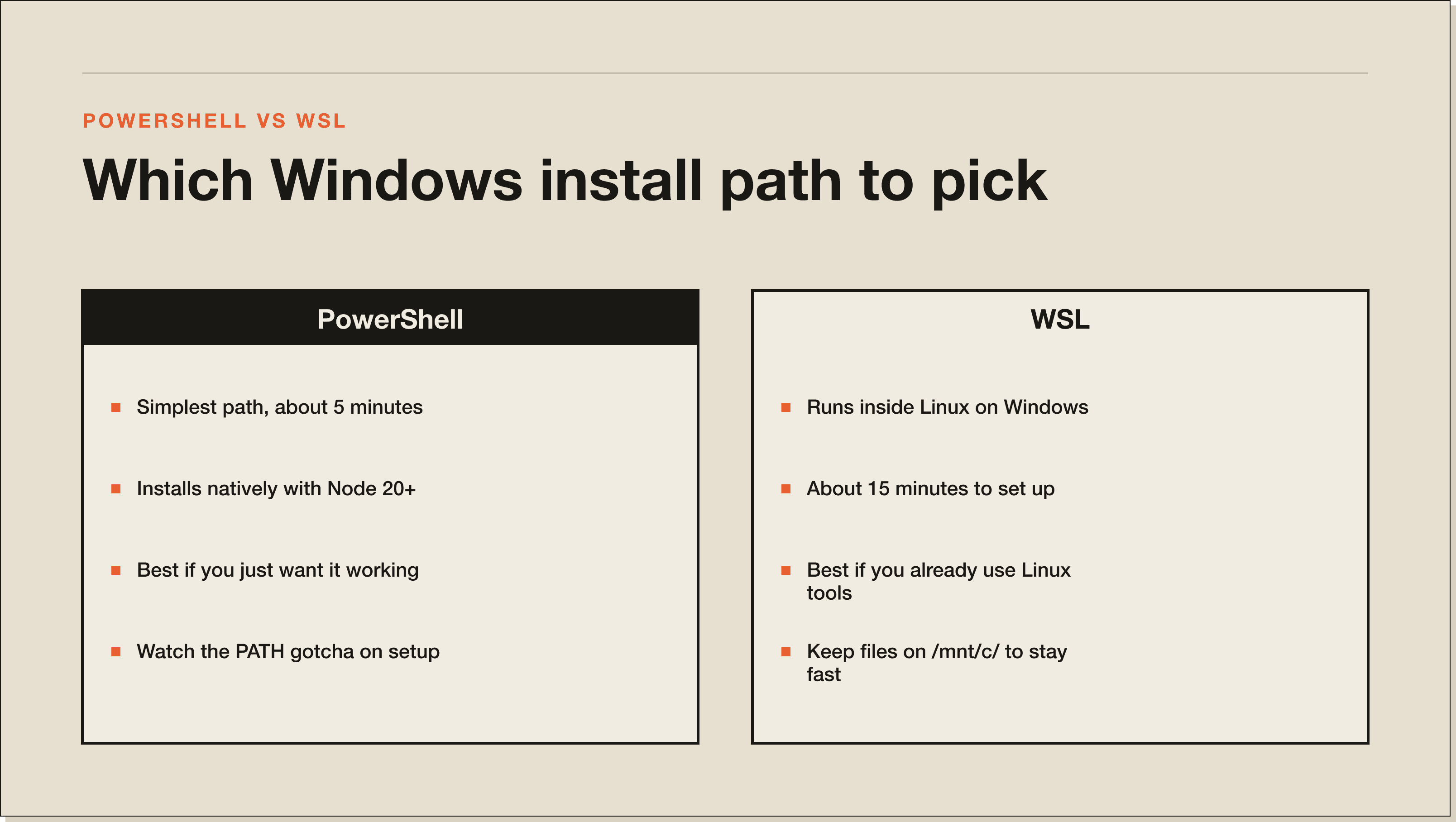
My recommendation: Use PowerShell if you just want Claude Code working today. Use WSL2 if you're already running Docker, Node, or other Linux tools there so everything stays in one environment.
✓PowerShell + Node.js — Best for: Most users, simplest path. Setup time: 5 min. Catches: Need Node 20+, PATH issues on first install.
✓WSL2 + Ubuntu — Best for: Devs already using Linux tools. Setup time: 15 min. Catches: Path translation between Windows and Linux filesystems.
✓Git Bash — Best for: Niche, NOT recommended. Setup time: 10 min. Catches: Symlink issues, npm bin PATH quirks.
PowerShell versus WSL in one panel. The decision depends on how much Linux tooling you want alongside Claude.
How to install Claude Code on Windows with PowerShell.
1. Install Node.js 20 or newer.
Claude Code requires Node.js 20 or higher. Go to nodejs.org and download the LTS installer. Run it with the defaults. When it's done, confirm the version:
bash
node --version
You should see v20.x.x or higher. If you see anything below v20, download the current LTS version and reinstall.
2. Open PowerShell as administrator.
Right-click the Start menu and choose "Windows PowerShell (Admin)" or "Terminal (Admin)". You need admin rights for npm to write to the global bin directory. Without this, the install will fail silently or write to a location that isn't in your PATH.
3. Run npm install.
bash
npm install -g @anthropic-ai/claude-code
This downloads and installs Claude Code globally. It takes 30 to 60 seconds depending on your connection. If you see permission errors, confirm you opened PowerShell as administrator.
4. Verify the install.
bash
claude --version
You should see a version number. If you see command not found or a PATH error, skip to the path gotcha section below before going further.
5. Authenticate with your Claude account.
bash
claude
Claude Code opens an interactive prompt asking you to log in with your Anthropic account. You need a Claude Pro plan ($20/month) or API credits. Follow the browser authentication flow and return to the terminal when done.
How to install Claude Code on Windows with WSL.
1. Enable WSL2.
Open PowerShell as administrator and run:
bash
wsl --install
On Windows 11 this is already available. On Windows 10 you may need to enable the Virtual Machine Platform feature first. Restart your machine after this step.
2. Install Ubuntu.
WSL2 defaults to Ubuntu. After the restart, open the Microsoft Store, search "Ubuntu", install the latest LTS version, and launch it to set up a username and password.
3. Install Node inside WSL.
Inside the Ubuntu terminal, install Node Version Manager (nvm) for clean control over Node versions:
Confirm you're on Node 20 or higher before moving on.
4. Install Claude Code inside WSL.
bash
npm install -g @anthropic-ai/claude-code
claude --version
claude
Authenticate the same way as the PowerShell method. Claude Code is now running inside your Linux environment.
5. Run from your Windows project folder.
Your Windows files live at /mnt/c/ inside WSL. To work on a Windows project folder, navigate to it like this:
bash
cd /mnt/c/Users/YourName/Projects/my-project
claude
Keep your project files on the Windows filesystem (/mnt/c/) rather than inside WSL's Linux filesystem. Mixing filesystems mid-project causes slow reads and occasional permission confusion.
The Windows path gotcha most installs hit.
After a successful npm install -g @anthropic-ai/claude-code, many Windows users type claude --version and see nothing. The binary is on disk, but Windows can't find it because the npm global bin directory isn't in the system PATH.
On Windows, npm installs global binaries to %AppData%\npm. To find the exact path on your machine:
bash
npm config get prefix
Copy the output. Now add it to your PATH:
Search "Environment Variables" in the Start menu and open it.
Under "System variables", click "Path" and then "Edit".
Click "New" and paste the path you copied from the npm command above.
Click OK, close all the dialogs, and restart your terminal.
After restarting the terminal, run claude --version again. If it still doesn't resolve, confirm the path you added ends in \npm and that you fully closed and reopened the terminal rather than opening a new tab.
How to verify Claude Code installed correctly on Windows.
Run both of these checks:
bash
claude --version
claude --help
A working install returns a version number on the first command and help text on the second. If claude --version works but claude --help throws an error, your Node.js version is likely below 20. Recheck with node --version.
To confirm Claude Code can actually run, open a project directory and type claude. It launches the interactive session and prompts for authentication if you haven't logged in yet.
Claude Code Windows install FAQ.
Does Claude Code work on Windows 11?
Yes. Claude Code works on Windows 11 via PowerShell with Node.js 20+ or inside WSL2. Windows 11 ships with WSL2 support built in, so either method is available without additional setup.
Do I need WSL to use Claude Code on Windows?
No. WSL is optional. The PowerShell method installs Claude Code natively on Windows without any Linux subsystem. WSL2 is a good choice if you already use it for development, but it's not required.
Why does my Claude Code install fail on Windows?
The two most common causes are Node.js being below version 20, and the npm global bin directory not being in the system PATH. Check your Node version with node --version and follow the path fix steps in the section above if claude isn't resolving after install.
Can I use Claude Code in PowerShell?
Yes. PowerShell is the recommended terminal for the native Windows install. Open it as administrator for the install step, then use it normally for day-to-day Claude Code sessions.
Does Claude Code work in Git Bash?
Technically yes, but it's not recommended. Git Bash on Windows has known issues with npm global symlinks and PATH resolution that can cause unexpected errors. Stick with PowerShell or use WSL2 with a proper Linux shell.
Is Claude Code free on Windows?
The install itself is free. To actually use Claude Code, you need either a Claude Pro account ($20/month) or Anthropic API credits. Without valid credentials, the CLI installs but authentication fails and you can't run sessions.
How do I update Claude Code on Windows?
Run the same install command you used originally:
bash
npm install -g @anthropic-ai/claude-code
npm overwrites the existing version with the latest. Check the updated version with claude --version afterward.
What Node version do I need for Claude Code on Windows?
Node.js 20 or higher. Older Node versions will fail at install or throw runtime errors. Use node --version to confirm before running the install command.
Related guides.
If you're just getting started or need setup guidance across other platforms, these cover the next steps:
Getting Claude Code installed is step one. The bigger unlock is knowing how to use it to build and automate, not just run one-off prompts. The blueprint below is where to start.
Frequently Asked Questions.
Can you install Claude Code on Windows?
Yes. Claude Code runs natively on Windows via PowerShell with Node.js, and it also runs inside WSL2 with Ubuntu. Both methods are officially supported. PowerShell is the fastest path for most people (5 minutes). WSL2 is better if you already live in a Linux terminal for other tools (15 minutes). Git Bash technically works but creates more problems than it solves.
How do I install Claude Code on Windows with PowerShell?
Five steps. Install Node.js 20 or newer from nodejs.org. Open PowerShell as administrator. Run npm install -g @anthropic-ai/claude-code. Verify with claude --version. Authenticate by running claude and following the browser login flow. Admin rights matter for npm to write to the global bin directory cleanly.
Do I need WSL to use Claude Code on Windows?
No. WSL is optional. The PowerShell method installs Claude Code natively on Windows without any Linux subsystem. WSL2 is a good choice if you already use it for Docker, Node, or other Linux tools and want everything in one environment. For a clean single-purpose install, PowerShell is simpler.
Why does claude --version say command not found after install?
Your npm global bin directory is not in your Windows PATH. Run npm config get prefix to find the npm prefix. Open Environment Variables in the Start menu, edit System Path, click New, and paste the path (ending in \npm). Close all dialogs, fully restart your terminal (not just open a new tab), and try claude --version again.
Does Claude Code work in Git Bash on Windows?
Technically yes, but not recommended. Git Bash on Windows has known issues with npm global symlinks and PATH resolution that cause unexpected errors. Stick with PowerShell for the native Windows install or use WSL2 with a proper Linux shell. The time you save in setup gets eaten by the time you spend debugging symlink quirks.
Is Claude Code free on Windows?
The install is free. To actually use it you need either a Claude Pro account ($20 a month) or Anthropic API credits. Without valid credentials, the CLI installs but authentication fails and you cannot run sessions. New API accounts get $5 in trial credits, which is enough for two to ten sessions before you need to add a payment method.
Should I keep my project files inside WSL or on the Windows filesystem?
Keep project files on the Windows filesystem at /mnt/c/ when running Claude Code from WSL. Mixing filesystems mid-project causes slow reads and occasional permission confusion. Navigate from WSL with cd /mnt/c/Users/YourName/Projects/my-project and run claude from there. This gives you Linux tooling without the I/O penalty.
Five interactive lessons. Install Claude Code, build your first automation, and deploy it live on the internet — all in under an hour. Free, no coding required.