← Back to Blog
How to Use Claude Cowork (Step-by-Step for Operators).
How to use Claude Cowork the right way. Folder setup, guardrails, connectors, outcome-first prompts, skills, and scheduled tasks, in 7 steps.
How to use Claude Cowork the right way. Folder setup, guardrails, connectors, outcome-first prompts, skills, and scheduled tasks, in 7 steps.
To use Claude Cowork, open the Cowork tab in the Claude desktop app, point it at a dedicated folder, then describe the outcome you want instead of the steps. Claude makes a plan, works through your files, and asks before anything significant happens.
The tool is easy to open and easy to misuse. The operators getting real value spend an hour on setup first, and that is the part most people skip.
I'm Tom. I teach operators to build with Claude, and this guide is the setup pattern that Jeff Su, Tina Huang, and Paul Lipsky all landed on independently, stripped down to the steps that matter.
Claude Cowork is Anthropic's desktop AI that completes tasks on your computer rather than handing back instructions. It reads and edits your local files, runs multi-step work, and delivers finished deliverables.
If you want the full breakdown of what it is and where it falls short, read what is Claude Cowork first. This guide is about getting it working.
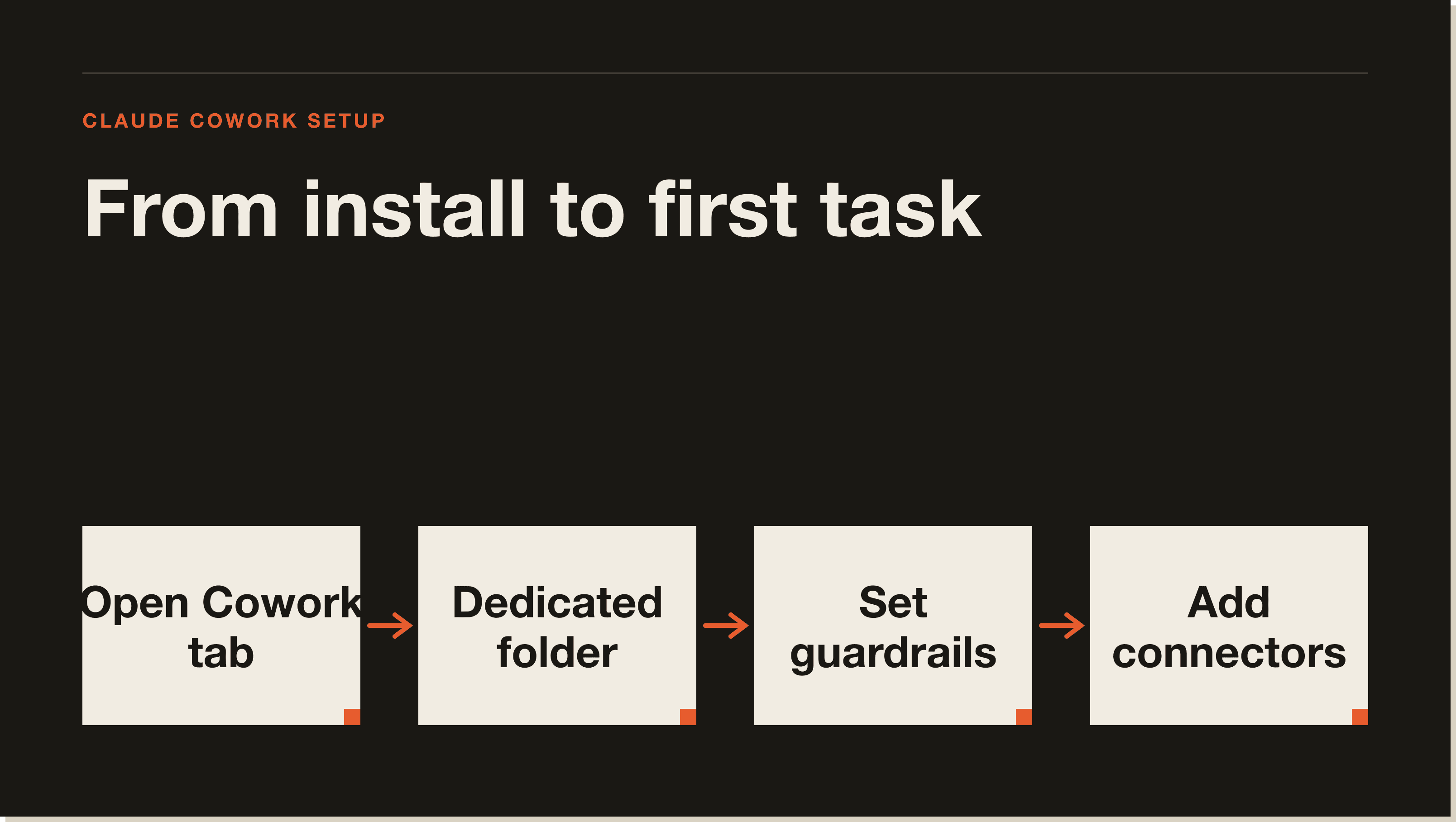
Download the Claude desktop app for Mac or Windows. Open it and select the Cowork tab, which sits alongside Chat and Code. There is no web version that runs the work, so the desktop app is the whole game.
Make a single parent folder before you grant any access. Jeff Su calls his "Cowork Playground." Paul Lipsky calls his "Cowork OS."
The reason is safety. When you grant Cowork access to a folder, that is its sandbox. Point it at one folder you control, not your entire drive, and the rest of your machine stays untouched.
Open the Cowork settings and add global instructions that apply only to Cowork. This is where you set the rules before it touches anything.
Jeff Su's go-to guardrail is worth copying. Tell it that before deleting, overwriting, or renaming any existing file, it must show you what will change and wait for confirmation. He calls these instructions "training wheels on a bicycle." Keep them until you trust the workflow.
Go to Customize, then Connectors, and add the integrations you actually use. The common starting set is Gmail, Google Calendar, Google Drive, and Notion.
If an app you need is not in the marketplace, Brock Mesarich shows a Zapier MCP workaround to bridge it. Start with two or three connectors, not ten.
This is the prompt shift that separates Cowork from Chat. Jeff Su puts it well. "With Cowork, we use outcome-first language, where we define the end result, the constraints, and the quality bar."
In Chat you tell it the steps. In Cowork you tell it the destination and let it plan the route. "Build me a clean expense report from these receipts, flag anything blurry" beats a list of ten manual instructions.
A skill is a reusable instruction set Cowork can run again. The reliable way to build one, per Jeff Su and Paul Lipsky, is to do the task manually with Cowork first, get it right, then say "turn that into a skill."
Jeff Su warns against the shortcut button that creates a skill from scratch. Run the real workflow first, then reverse engineer the skill at the end. It works far better.
Once a workflow runs clean, put it on a schedule. A 6am inbox triage, a Monday metrics pull, a weekly digest. You define the cadence once.
One hard limit to plan around. Paul Lipsky found that "your computer needs to be on and Cowork needs to be open" for scheduled tasks to fire. If you close your laptop at night, the morning task will not run.
Start with something low stakes that proves the value. A messy downloads folder is perfect.
Tina Huang pointed Cowork at a desktop of 376 files and had it propose a clean structure, then sort and rename. Jeff Su ran 100-plus receipts into a single Excel expense report. Pick a pile of files you have been avoiding and let it earn your trust on that first.
Do not grant access to your whole drive. One dedicated folder, always.
Do not lean on the browser extension yet. Jeff Su could not recommend it, calling it slow, unreliable, and a usage hog that "overthinks every step." And do not trust numbers blindly, since Cowork still invents the occasional stat. Keep human review on anything that matters.
Yes. Cowork is available on Anthropic's paid plans, starting with Claude Pro at 20 dollars a month. There is no free standalone version.
Only the folders you explicitly grant. Files outside the granted folder will not be read, even if you drag them in. Point it at one dedicated folder for safety.
Type a plain-language description of the outcome you want, not a list of steps. Define the end result, the constraints, and the quality bar, then approve its plan before it runs.
The most common cause is a closed laptop. Scheduled tasks only fire when your computer is on and Cowork is open. Some users run a dedicated machine to keep them alive.
Cowork is a sandboxed assistant for everyday file and document work. Claude Code is a developer tool with full machine access. Cowork uses outcome-first prompts, Code lives in your terminal.
Cowork is a fast on-ramp to building real automations without code. Start with the free Claude Code Blueprint for the foundations, then join the 30-day challenge to install systems that run your business while you sleep.
Five interactive lessons. Install Claude Code, build your first automation, and deploy it live on the internet — all in under an hour. Free, no coding required.
Grab the Blueprint →