← Back to Blog
Claude in the Browser: The Build-and-Verify Loop.
Using Claude in the browser means Claude can read, click, and verify in Chrome while you build in the terminal. Here's how the developer loop actually works.
Get your free AI audit.
Book a call →Using Claude in the browser means Claude can read, click, and verify in Chrome while you build in the terminal. Here's how the developer loop actually works.
Using Claude in the browser means giving Claude the ability to read what's on screen, navigate pages, and verify real application state inside Chrome while you build in the terminal, closing a feedback loop that previously required you to manually check every change.
I'm Tom. I run AI workflows for business owners and have been using Claude Code as my primary build environment since early 2026. The part most guides skip over is what happens after you write the code: how do you verify it worked? For months I was alt-tabbing between the terminal and Chrome, reading console errors, copying DOM state back into Claude, and then manually describing what I saw. The build-and-verify loop fixes that. Claude goes into the browser, reads what's actually there, and tells you whether the thing you just built is behaving as expected.
---
---
Claude browser use is Anthropic's umbrella term for the capabilities that let Claude perceive and act inside a web browser. Two things fall under it that people often conflate. The first is the Claude browser agent running inside Claude Code, which autonomously navigates URLs, reads DOM state, clicks buttons, and fills forms as part of an agentic task. The second is the Claude Chrome extension, which sits in your toolbar and gives Claude access to the page you are currently viewing. Same underlying computer-use capability. Different deployment entirely.
The computer-use API, which powers both, was launched in public beta in October 2024. It lets Claude models take screenshots of a display, move the cursor, click, type, and scroll. When scoped to a browser, that turns into page navigation, DOM inspection, and form interaction that Claude can chain together across a multi-step workflow.
---
The Claude browser agent is the agentic mode of browser use, where Claude plans and executes a sequence of browser actions to complete a goal rather than responding to a single prompt. You give it an objective ("open the staging URL, submit the contact form with test data, and confirm the success state"), and it runs the steps autonomously, reporting back when it's done or when it hits a decision point that requires your input.
In Claude Code, you invoke browser agent behavior by giving Claude a task that requires browser verification as part of the plan. Claude handles the sequencing. You can also run it through the computer-use API directly if you are building a custom pipeline.
The browser agent is most powerful when paired with a deployment. You build locally, push the change, hand off verification to Claude, and move on to the next task while it checks.
---
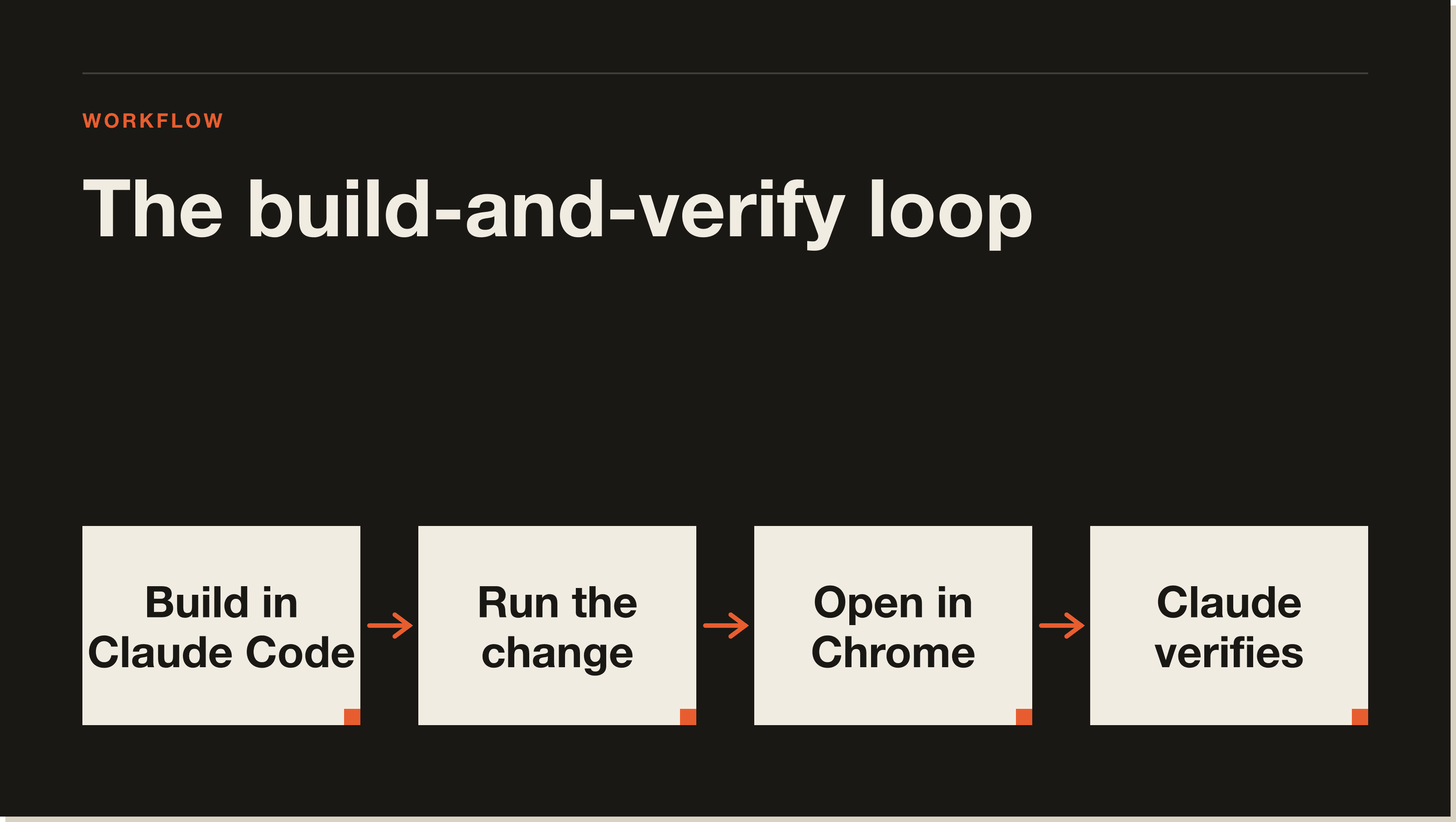
The build-and-verify loop is the workflow pattern I use on every frontend change. It has four steps.
1. Build in Claude Code (terminal)
You describe the change to Claude Code, it edits the files, and your dev server reflects the update. Claude stays in the terminal context and knows what changed.
2. Run the change
The local dev server rebuilds (or you push to a staging URL if you want a real environment check). The change is live somewhere Claude can read it.
3. Open in Chrome, Claude reads the page
Claude navigates to the URL, loads the page, and reads DOM state, visible text, error states, and console output. With the Chrome extension installed, it can also read the active tab directly. Without it, Claude Code can use computer-use to take a screenshot and read what it sees.
4. Claude verifies and reports
Claude tells you whether the component rendered, whether the form submitted correctly, whether the error message appears in the right place, and whether there are console errors worth fixing. If something is wrong, it feeds that information straight back into the next build iteration.
This cuts the feedback loop from "build, manually check, describe what you saw, fix" to "build, let Claude check." On a heavy build day, that saves me an hour or more of context-switching.
---
Yes. The Claude Chrome extension is a browser add-on available from the Chrome Web Store that gives Claude direct access to the active tab. It works on Chrome, Edge, Arc, and Brave, but not Firefox or Safari. You authenticate with your Claude account (Pro, Max, Team, or Enterprise plan required), grant access to specific sites, and Claude can read and act on those pages from inside a Claude conversation.
For the build-and-verify loop, the extension is the cleanest integration. Claude can read the page you have open without you screenshotting or copying anything. For a full walkthrough of setup, the eight business use cases, and the privacy trade-off, read the Claude Chrome extension guide. This post focuses on the developer and operator workflow, not the extension setup itself.
---
Claude Code can control the browser through two routes. The first is the computer-use API, where Claude Code takes screenshots of your screen (or a sandboxed display) and issues mouse and keyboard commands to navigate and interact with the browser. This works without any extension installed. The second route is via the Chrome extension: when you have the extension active on a tab, Claude Code can read that tab's DOM and visible state directly.
The computer-use route is more powerful but slower. It treats the browser as a visual surface and infers structure from screenshots. The extension route is faster and more precise because Claude is reading the parsed DOM, not inferring from pixels. For debugging and verification tasks in a build loop, I use the extension route because the precision matters more than the raw capability.
The Claude Code on the web guide covers the computer-use API in more depth if you are building pipelines outside the build-and-verify loop.
---
The browser agent approach is the right call when you want Claude to run an automated workflow without you being present. The Chrome extension is better when you are at the keyboard and want Claude to augment what you are actively doing.
For the build-and-verify loop specifically, the extension wins. You're already in the browser with the tab open. It's the lowest-friction path to getting Claude's eyes on the result.
---
Using Claude in the browser is safe for most developer and business workflows with standard precautions. The main risks are prompt injection and unintended actions in autonomous mode.
Prompt injection is when a malicious actor embeds instructions in a web page designed to hijack Claude's behavior. Anthropic's published adversarial testing found that safety mitigations reduce browser-specific attack success rates from 35.7% to 0% on the targeted scenarios they tested. The general prompt injection rate dropped from 23.6% to 11.2%. Not zero, but significantly mitigated. The practical defense: keep autonomous mode off when browsing sites you do not control, and review what Claude is about to do before it does it.
For developer use, the risk profile is low. You are pointing Claude at your own staging URLs or local dev server. The data is yours and you are watching it happen. Sensitive production data and client records belong behind an Enterprise plan with a data processing agreement, not in a browser extension workflow.
The Claude computer use documentation on Anthropic's docs covers the full security guidance and safe usage patterns.
---
My real workflow is messier than the four-step version above.
I am building in Claude Code in the terminal. A component breaks. Instead of opening Chrome, reading the error, copying the stack trace, and pasting it back into Claude, I just ask Claude to check the staging URL. It goes there, reads the error state, and tells me exactly what is wrong. Then we fix it in the terminal and it checks again.
The part that changed my build habits is not the dramatic autonomous browsing case. It is the small loops. Check if that button is rendering. Is the spacing right? Did the form submit and redirect? These feel trivial but each one used to be a context-switch. Now they are not.
I also use it for competitive research on deployed sites. When I am building a new page, I will ask Claude to read two or three reference sites and summarise the UI patterns they use. That feeds directly into the build conversation without me opening separate tabs and manually describing what I see.
---
Claude Code treats the browser as a tool it can call when it needs to verify something in the real world. In practice, this happens in two ways.
First, you can explicitly ask Claude Code to navigate to a URL and report what it finds. Claude uses computer-use to take a screenshot of the rendered page, read visible text and console output, and bring that information back into the active conversation.
Second, Claude Code can use the Chrome extension's DOM access if you have it installed and the target site is granted access. This is the faster path for local development because the extension reads live DOM state rather than inferring from a screenshot.
For developer teams, the practical setup is: Claude Code in the terminal, Chrome extension installed, local dev server running. You build a feature in the terminal, ask Claude to verify it on the local URL, and the loop runs without you touching the browser. Read the complete Claude Code guide if you are new to Claude Code and want to understand the full picture before layering in browser integration.
---
---
Claude browser use refers to the capabilities that let Claude perceive and act inside a web browser, either through the computer-use API (where Claude takes screenshots and issues mouse and keyboard commands) or through the Chrome extension (where Claude reads live DOM content from the active tab). Both are available today on paid Claude plans.
Yes. The Claude Chrome extension is available from the Chrome Web Store and works on Chrome, Edge, Arc, and Brave. It requires a paid Claude plan (Pro, Max, Team, or Enterprise) and grants Claude access to specific sites you enable in the settings. It is not available on Firefox or Safari.
Yes. Claude Code can navigate to URLs, read page content, take screenshots via computer-use, and interact with DOM elements. With the Chrome extension installed, it can also read the live DOM of your active tab directly. This is how the build-and-verify loop works: Claude builds in the terminal and checks the result in the browser without you switching context.
The Claude browser agent is the agentic mode of Claude's browser use capability, where Claude plans and executes a sequence of browser actions to complete a goal autonomously. You give it an objective, and it navigates, clicks, reads, and reports back. It runs inside Claude Code or via the computer-use API. It is the right tool for multi-step automated workflows. The Chrome extension is better for in-session developer verification.
For developers pointing Claude at their own staging or local URLs, the risk is low. Anthropic's safeguards reduced browser-specific prompt injection attack success to 0% on the targeted scenarios they tested. The other risk is unintended actions in autonomous mode. Keep autonomous mode off on untrusted sites. Do not grant extension access to pages containing sensitive client data unless you are on an Enterprise plan with a data processing agreement.
Both let an AI model read web content, but Claude browser use allows direct browser control: form filling, multi-step navigation, and live DOM reading. ChatGPT's browser tool is built for in-chat research, not agentic workflows that chain actions together.
Yes. Claude can use the computer-use API to take screenshots of the browser and interact with it visually without the extension installed. This is slower because it works from screenshots rather than the parsed DOM. The extension gives a more precise, faster integration for the build-and-verify loop. For fully automated pipelines where you are not at the keyboard, the computer-use API route is more self-contained.
---
---
Five interactive lessons. Install Claude Code, build your first automation, and deploy it live on the internet — all in under an hour. Free, no coding required.
Grab the Blueprint →