← Back to Blog
Claude Code in Cursor: How I Run It (and Skip Cursor AI).
How to run Claude Code in Cursor: the integrated-terminal CLI setup, the extension panel, IDE diff viewing, and why I use Cursor as just an editor.
Get your free AI audit.
Book a call →How to run Claude Code in Cursor: the integrated-terminal CLI setup, the extension panel, IDE diff viewing, and why I use Cursor as just an editor.
You can use Claude Code inside Cursor in two ways: install the official Claude Code extension from the marketplace, or run the claude command in Cursor's integrated terminal. Cursor is a fork of VS Code, so the same Claude Code tooling that works in VS Code works in Cursor with no extra steps.
This is not a comparison post. If you want Claude Code versus Cursor head to head, I wrote that separately in Claude Code vs Cursor. This is the how-to for people who already use Cursor and want Claude Code running inside it. I'm Tom, and here is the honest version: I run Claude Code in Cursor's integrated terminal all day, and I barely touch Cursor's own AI. Cursor is my editor. Claude Code is the brain. Here is the exact setup and why I run it that way.
[CTA-BLUEPRINT]
Running Claude Code in Cursor means using Anthropic's agent inside the Cursor editor instead of, or alongside, Cursor's built-in AI features. There are two ways to do it. The first is the command-line interface in Cursor's integrated terminal, where you type claude and work in the CLI. The second is the Claude Code extension, which adds a graphical chat panel to Cursor.
Both run in Cursor because it is a VS Code fork. The Claude Code extension installs in VS Code forks like Cursor, Devin Desktop, and Kiro, and the CLI runs in any terminal, including Cursor's. The two share the same conversation history and the same settings file, so you can start in one and continue in the other. I use the terminal path, which I will come back to, but I will cover both so you can pick.
Getting Claude Code running in Cursor takes four steps for the terminal path. This is the setup I actually use.
The Claude Code extension bundles its own private copy of the CLI for its chat panel, but that copy is not on your shell PATH. To type claude in Cursor's terminal, you need the standalone CLI install. Install it once and the command works in any terminal. If claude is still not found afterwards, check your PATH. After that, keep Claude Code up to date so the Cursor integration gets fixes early.
Open the integrated terminal with Cmd+ backtick on Mac or Ctrl+ backtick on Windows and Linux, then type claude and hit enter. Sign in with your Claude account on first run. No API key is needed for a paid Claude subscription. You are now in a full Claude Code session inside Cursor.
Cursor needs one command to fix multi-line input and a couple of editor quirks. Run /terminal-setup once inside Cursor. It writes the Shift+Enter keybinding so you can add newlines without sending, sets terminal.integrated.gpuAcceleration to off to stop garbled text, and adjusts scroll sensitivity. Existing keybindings are left in place.
When you run the CLI in Cursor's integrated terminal, Claude Code automatically connects to the editor. That connection is what opens its file edits in Cursor's native side-by-side diff viewer and lets it read your current selection and the language-server errors from the Problems panel. If you are running Claude Code in an external terminal instead, run /ide inside the session to connect it to Cursor manually.
If you prefer a graphical chat panel over the CLI, install the extension. Open the Extensions view with Cmd+Shift+X or Ctrl+Shift+X, search for "Claude Code", and install, or install from the Open VSX registry. The Spark icon then appears in the editor toolbar when a file is open. The panel gives you plan review, click-to-accept diffs, @-mentions, and conversation history in a sidebar.
I run Claude Code in the integrated terminal and let Cursor be a plain editor, and I do almost nothing with Cursor's own AI. This sounds wasteful given what Cursor charges for, and I have thought about it. The reason is simple: Claude Code is a more capable agent for the way I work, and I would rather have one tool driving everything than split my attention between two AI systems with different memories and different habits.
Cursor still earns its place. Its diff viewer, file tree, git panel, and extensions are a comfortable shell to read and review Claude's work in. The IDE integration means every edit Claude proposes shows up in Cursor's native diff view, so I get the agent of Claude Code with the review experience of a real editor. That combination is the whole point. The CLI does the thinking, Cursor shows me the result in a window I trust.
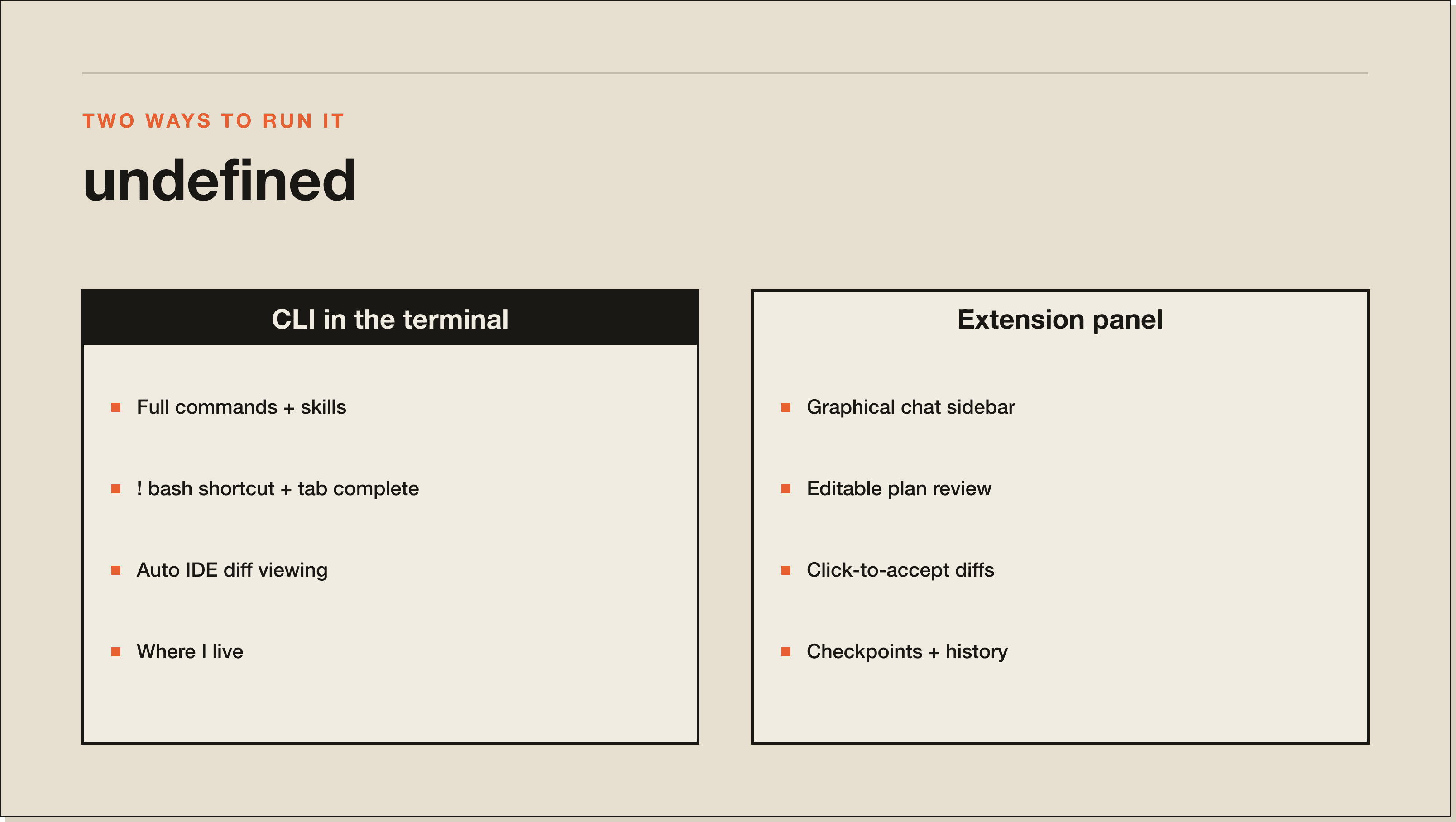
The CLI and the extension share history and settings, but they are not feature-identical. The CLI is the complete product. The extension is a graphical subset with a few editor-native extras of its own. Here is the split that matters.
The CLI has the full set of commands and skills, the ! bash shortcut for running a shell command inline, and tab completion. The extension exposes only a subset of commands, has no ! bash shortcut, and has no tab completion. What the extension adds is graphical: plan review as an editable markdown document, click-to-accept diffs, the Option+K shortcut to insert an @file#5-10 reference from your selection, checkpoints to rewind Claude's edits, and a sidebar of past conversations. If you need a CLI-only feature while living in the panel, just open the integrated terminal and run claude there. They stay in sync.
If you are deciding whether to run Claude Code in Cursor or lean on Cursor's native AI, the honest answer is that it depends on the size of the job. Cursor's Tab autocomplete and inline edits are fast and excellent for small, local changes while you type. Claude Code is the stronger choice for multi-file, agentic work where you describe an outcome and let it plan, edit across the codebase, and run commands.
My verdict, for how I work, is that Claude Code is the main driver and Cursor's AI is the part I skip. I am not telling you to cancel Cursor. I am telling you that if you already pay for it, you can run a more capable agent inside it and use Cursor for what it is genuinely great at, which is being a fast, familiar editor. For the full side-by-side, see Claude Code vs Cursor, and if you are weighing other assistants, Claude Code vs Copilot covers that pairing.
The setup has rough edges worth knowing before you commit. The biggest is that installing the extension does not put claude on your PATH, so people assume the terminal command is broken when they just need the standalone CLI install. The extension panel is also a subset of the CLI, so power users miss the ! bash shortcut and tab completion until they drop into the terminal.
Background process visibility is weaker in the panel than in the CLI, so long-running commands are easier to track in the terminal. And on macOS Tahoe and later, the system Game Overlay binds Cmd+Esc, which intercepts the extension's focus shortcut until you clear it in System Settings under Keyboard, Keyboard Shortcuts, Game Controllers. None of these are dealbreakers, but they are the friction points that send people to a troubleshooting page. To go deeper on the CLI itself, my Claude Code commands reference and the how to use Claude Code guide cover the workflow once you are set up.
[CTA-BLUEPRINT]
Install the standalone Claude Code CLI, open Cursor's integrated terminal with Cmd+ backtick or Ctrl+ backtick, and run claude. Sign in on first launch. For a graphical panel instead, install the Claude Code extension from the Extensions view or the Open VSX registry. Both work because Cursor is a VS Code fork.
Yes. The Claude Code extension installs in VS Code forks including Cursor. Open the Extensions view with Cmd+Shift+X or Ctrl+Shift+X, search for "Claude Code", and install, or install from the Open VSX registry. After installing, the Spark icon appears in the editor toolbar when a file is open.
No. Any paid Claude subscription such as Pro, Max, Team, or Enterprise works, and you sign in with that account on first launch. No API key is required unless you access Claude through a third-party provider like Amazon Bedrock or Google Vertex AI.
The extension bundles a private copy of the CLI for its chat panel, but it does not add claude to your shell PATH. Install the standalone Claude Code CLI once and the command works in Cursor's terminal and any other terminal. If it is still not found, verify your PATH.
Yes. When you run the CLI in Cursor's integrated terminal, Claude Code connects to the editor automatically and opens its proposed edits in Cursor's native side-by-side diff viewer. If you run Claude Code in an external terminal, run /ide inside the session to connect it to Cursor.
Use Cursor's Tab and inline edits for small, fast changes as you type, and use Claude Code for multi-file, agentic work where you describe an outcome and let it run. They are complementary. I run Claude Code as my main driver and use Cursor mostly as the editor, but both approaches are valid.
Yes. The CLI and the extension share the same conversation history and the same ~/.claude/settings.json settings file. You can start a conversation in the panel and continue it in the terminal with claude --resume, or the other way around.
/terminal-setup command and Cursor-specific keybinding fixes.claude on your PATH.Running Claude Code in Cursor is the easy part. The leverage comes from knowing what to point it at. The free Blueprint walks you through your first real Claude Code build in 60 minutes, and the Challenge is where operators turn it into a system. Start with the Blueprint.
Five interactive lessons. Install Claude Code, build your first automation, and deploy it live on the internet — all in under an hour. Free, no coding required.
Grab the Blueprint →