Claude for Excel: The Honest Guide to AI in Spreadsheets.
Claude for Excel is an AI add-in that lets you ask questions about any cell, fix formula errors, test scenarios, and build models from scratch inside your workbook. Here is how it actually works.
Claude for Excel is an AI add-in from Anthropic that sits inside Microsoft Excel, reads your entire workbook, and helps you interrogate formulas, fix errors, update assumptions, and build financial models without breaking anything.
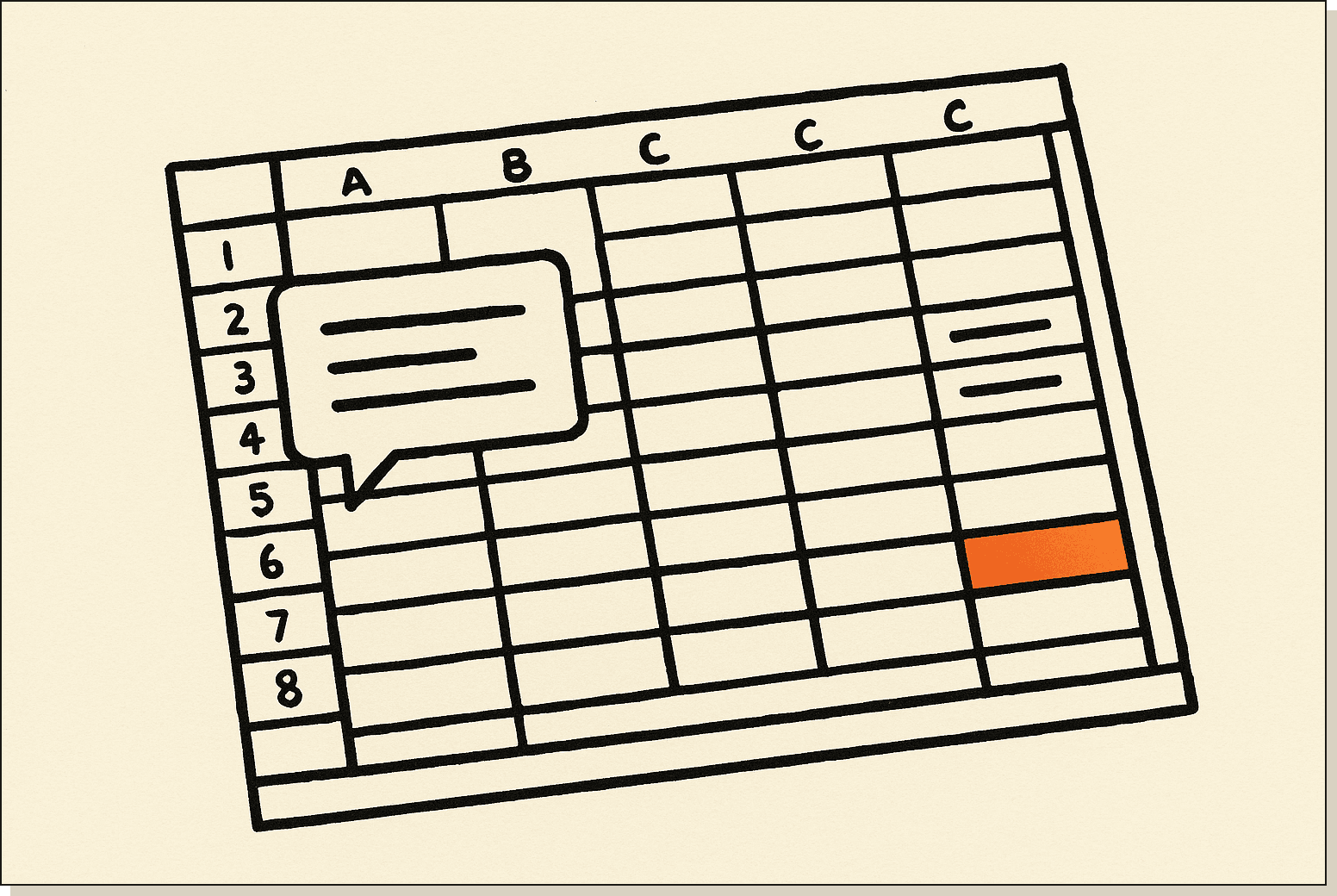
Claude for Excel as a sidebar that reads the entire workbook, not a chatbot that needs you to paste cells.
I'm Tom. I've been using Claude as a daily work tool for over a year, and the Excel add-in is one of the more quietly useful things they've shipped. Below is an honest look at what it does well, what it can't do, and how to wire it into a real finance or ops workflow.
The "Claude" in this context is the same Claude that powers Claude.ai, Claude Code, and Claude Cowork. This article is specifically about Claude for Excel, the Microsoft Excel add-in. If you've arrived here looking for Claude Cowork (the broader desktop automation product), I'll cover that too since Excel is part of the Cowork ecosystem.
[CTA-BLUEPRINT]
What is Claude for Excel?.
Claude for Excel is a Microsoft Excel add-in built by Anthropic. It gives you a chat panel inside Excel where you can ask questions about any cell, formula, or tab in your workbook. Claude reads the full model, including cross-tab dependencies, and responds with cell-level citations so you can verify the logic.
You install it from the Microsoft marketplace, open it with Control+Option+C on Mac or Control+Alt+C on Windows, and from that point it stays alongside your spreadsheet as a persistent sidebar.
Key difference from pasting data into Claude.ai: the add-in has read-write access to your workbook. It can make changes, highlight what it changed, and explain why. You're not copying and pasting ranges back and forth.
What is Claude Cowork?.
Claude Cowork is the broader product that Claude for Excel sits within. Cowork is Anthropic's agentic system for knowledge work: it runs on your desktop, connects to local files and applications, and completes multi-step tasks from start to finish. Excel is one of many things it can work with. You describe the outcome, Claude figures out how to get there.
The difference between Cowork and regular Claude chat: in chat, Claude responds to messages but can't touch your files. In Cowork, Claude has permission to read, edit, and create files in folders you specify. The Claude for Excel add-in brings that same file-access model directly into your spreadsheet.
How does Claude for Excel work?.
The add-in reads your full workbook context when you open it, including formula structures, cross-tab references, and named ranges. When you ask a question or request a change, Claude works through the model, shows you a diff of every change it plans to make, and waits for your review before writing anything to the sheet.
Formula understanding and cell citations.
Claude parses nested formulas across tabs and responds with explicit cell references. Ask "what drives the Q3 revenue forecast?" and it will trace back through SUMIF, INDEX/MATCH, and lookup tables, citing every cell that contributes to the answer. This is more useful than Googling the formula syntax, because it's explaining your model, not a generic example.
Scenario testing without breaking dependencies.
You can tell Claude to update an assumption, such as "increase revenue growth by 2% and show the impact on terminal value," and it will propagate the change across every dependent cell while preserving formula structure. It highlights each change with an explanation. If the change would break a reference, Claude flags it rather than silently corrupting the model.
Error debugging.
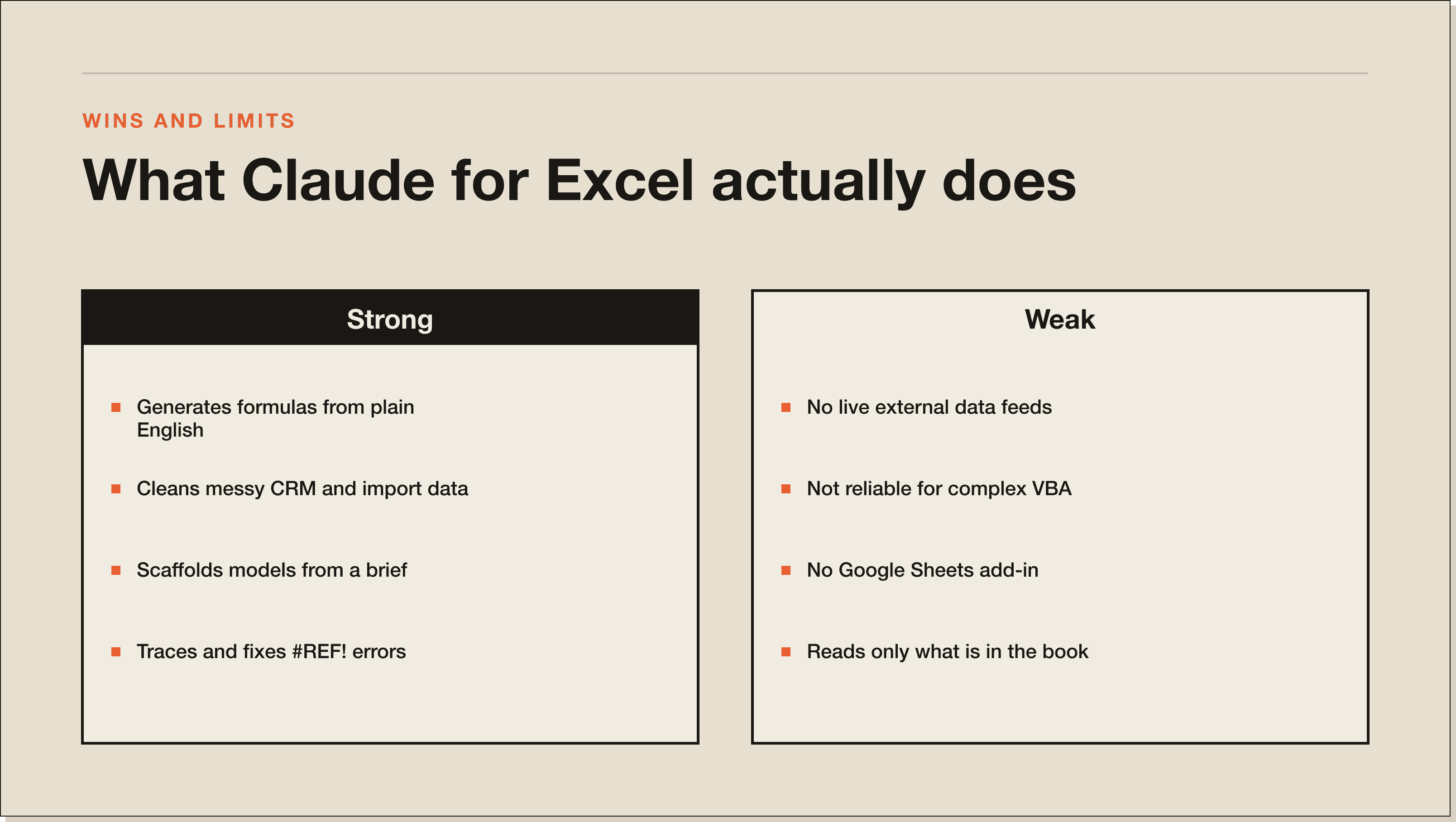
Claude traces #REF!, #VALUE!, and circular reference errors to their source. Give it a broken cell and it explains what went wrong and how to fix it without disrupting the rest of the sheet. This is where most people save the most time, because debugging a cascading #REF! in a 40-tab model manually takes hours.
Building models from scratch.
You can describe a financial model in plain English and Claude will build a draft structure with standard financial modeling conventions. It also populates existing templates with fresh data while maintaining formulas and formatting.
The 5 things Claude for Excel actually does well.
Where the add-in earns its sidebar and where it falls short. Treat the right column as known limits before you trust it on a real model.
Here's where the tool earns its keep for business owners and analysts:
1. Formula generation with context. Not just "write me a VLOOKUP." You describe what you're trying to calculate in plain English and Claude generates the formula with references to your actual column headers and named ranges. It also explains the formula so you understand what it's doing.
2. Data cleaning on messy imports. When you pull data from a CRM, accounting system, or manual entry sheet, it arrives inconsistent. Claude can identify formatting issues, flag duplicates, standardise date formats, and clean string fields without you writing a custom macro.
3. Model-from-prompt for simple structures. Give Claude a brief, for example "build a monthly P&L with rows for revenue, COGS, gross margin, operating expenses, and EBITDA, using assumptions in a separate tab," and it will scaffold the structure. You fill in the numbers. It handles the formulas.
4. Summary tab generation. One of the most-used workflows: Claude reads a complex multi-tab model and generates a clean executive summary tab, pulling key metrics with live references back to the source data. The summary updates automatically when inputs change.
5. What-if scenario analysis. You can set up scenario toggles by describing them to Claude. "Add a dropdown to this assumptions tab so I can switch between base, bull, and bear cases, and have the rest of the model respond to the selection." Claude builds it. You approve the changes cell by cell.
The 3 things Claude for Excel cannot do.
Honest review means calling out the gaps.
1. It does not connect to live external data. Claude for Excel reads whatever is already in your workbook. It has no direct access to market data feeds, live API connections, or external databases. If you need live pricing or real-time metrics in your model, you'll need a separate data connector or the broader Claude Cowork with access to your browser and other tools.
2. It does not write complex VBA macros reliably. Claude can write basic VBA and Power Query M code, but it is not a coding agent. For complex automation inside Excel, Claude Code in the terminal is the better tool. Claude for Excel is designed for knowledge-work users, not developers.
3. It is not available for Google Sheets. Despite searches for "Claude Sheets," there is no official Claude add-in for Google Sheets. The add-in is Microsoft Excel-only. There is a separate Google Drive connector for Claude.ai that lets Claude read your Drive files (Sheets, Docs, PDFs) inside chat sessions, but it is read-only and not the same as a live two-way Sheets integration. If your team is Sheets-first, the realistic workflow is Drive-connector reads inside Claude.ai or Claude Cowork with browser access, not a native add-in.
How to install Claude for Excel.
Claude for Excel is available on Claude Pro, Max, Team, and Enterprise plans. Free plan users cannot access it.
Step 1: Confirm your plan. Log into claude.ai and check you're on Pro ($17/month annual, $20 monthly), Max, Team, or Enterprise. If you're on free, you'll need to upgrade first.
Step 2: Install from the Microsoft marketplace. Go to the Microsoft AppSource page for Claude for Excel. Click Install. Sign in with your Microsoft account. The add-in will appear in your Excel ribbon.
Step 3: Open Excel and activate. Open any workbook. Press Control+Option+C on Mac or Control+Alt+C on Windows to open the Claude sidebar. Sign in with your Anthropic account when prompted.
Step 4: Grant workbook access. Claude asks which workbook to access. Select the file. From this point the conversation panel is live.
The add-in works within your existing Microsoft 365 security framework. For enterprise deployments, you can also access it through Amazon Bedrock, Google Cloud's Vertex AI, or Microsoft Foundry rather than directly through a Claude account.
Claude for Excel vs Microsoft Copilot.
The obvious comparison. Both are AI tools inside Excel, and if your organisation runs Microsoft 365, Copilot may already be available to you.
The difference in practice: Copilot is tightly integrated with the Microsoft ecosystem and works well for generating charts, summarising data in the ribbon, and basic formula help. Claude tends to perform better on complex multi-tab financial models where you need precise, traceable reasoning across dependencies. The cell-level citation format and the "show me the plan before making changes" workflow makes Claude safer to use on models that other people will review.
Claude for Excel vs Copilot is not a clear win for either. If you're already paying for Copilot via Microsoft 365, test it on your actual models before switching. If you're already on a Claude plan and working in Excel regularly, the add-in is a no-brainer add-on.
How to wire Claude for Excel into a finance or ops workflow.
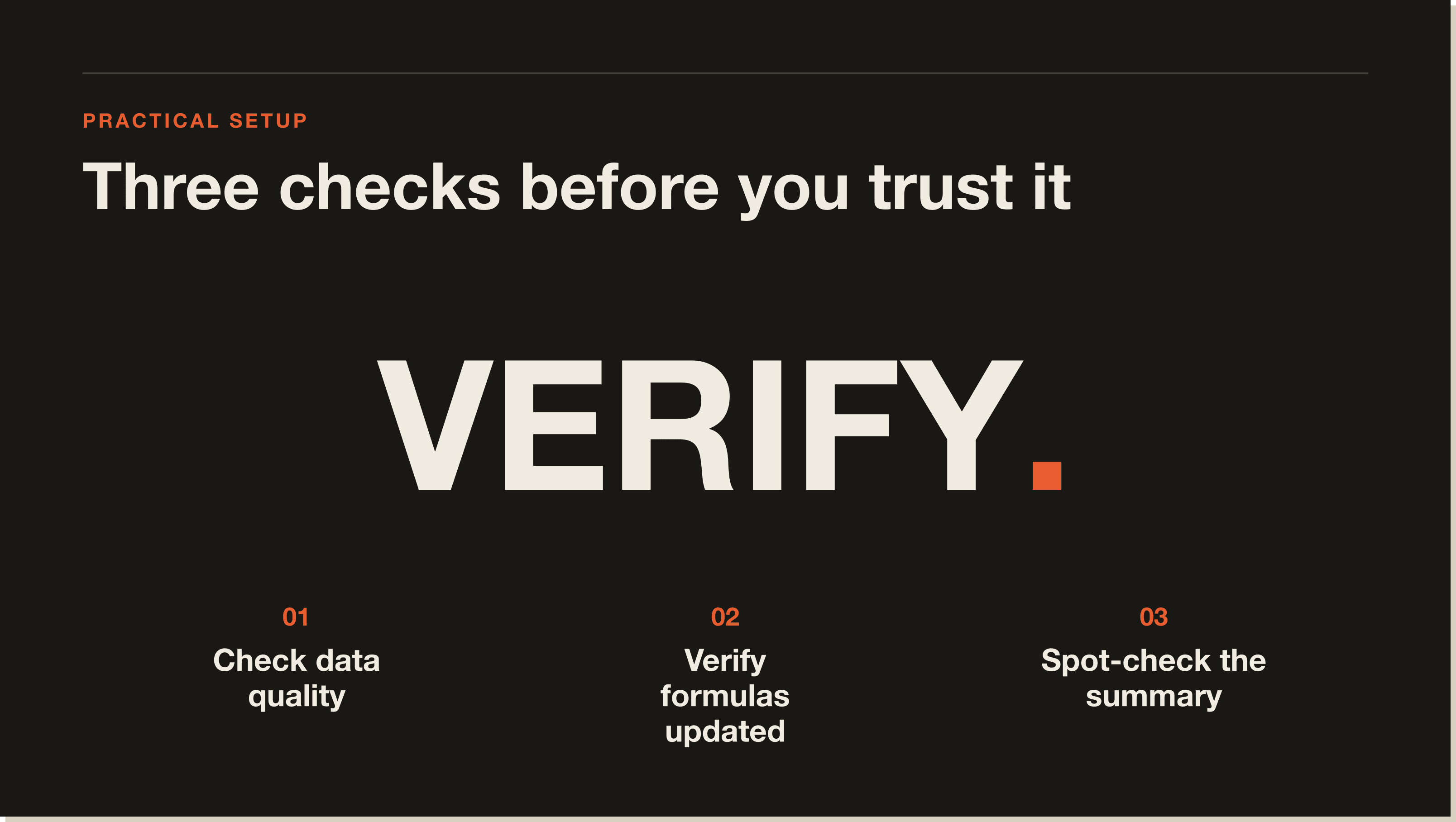
Four checks before you let the add-in touch a sheet you ship. Pin the range, verify the formula, backup, spot-check.
This is where the tool earns its value beyond one-off queries.
The most useful workflow pattern: a monthly reporting model that your team updates manually. Inputs come in from various sources, formulas cascade through the model, and the output is a deck or executive summary. This is painful without AI. With Claude for Excel, the workflow looks like this.
After pulling data into the workbook, open the Claude sidebar and ask it to check for data quality issues: missing values, outliers, formatting inconsistencies. Fix those first. Then ask Claude to update the specific assumption cells with the new period's inputs and verify that downstream formulas updated correctly. Finally, ask Claude to refresh the summary tab with commentary on the period-over-period changes, citing the cells that drove any material movements.
That workflow, which used to take two to three hours of error-prone manual review, takes 30 to 45 minutes with Claude. The remaining time is yours for analysis and judgment, not for tracing formula errors.
If you want to go further, Claude Cowork can handle the data pull step: it can check your email, pull the source file from an attachment, save it to the right folder, and trigger the Excel workflow. That's the bridge from "AI inside a spreadsheet" to "AI running your ops."
[CTA-BLUEPRINT]
Verdict: is Claude for Excel worth it?.
Yes, for analysts, finance teams, and business owners who live in Excel and are already on a Claude paid plan. The formula debugging alone saves enough time to justify the add-in. The scenario testing and model scaffolding are genuine workflow improvements, not demo features.
Who it is not for: free plan users (they cannot access it), Google Sheets users (no add-in exists), or developers who need VBA/Power Query automation (Claude Code is the better tool for that).
The honest framing: Claude for Excel is a spreadsheet co-pilot, not an autonomous agent. It asks before it acts, shows you every change, and waits for your approval. That conservative approach is exactly right for financial models, where a silent mistake cascades. It means you stay in control while still cutting the repetitive work.
If you're using Claude for Excel and want to extend that same logic to the rest of your business, the natural next step is Claude Code. That's where you build the automation layer that feeds the spreadsheet. The Claude Code guide on this site is the place to start.
Claude for Excel FAQ.
What is Claude for Excel?
Claude for Excel is a Microsoft Excel add-in from Anthropic that lets you ask questions about any cell or formula in your workbook, fix errors, test scenarios, and build models from natural language descriptions. It reads your entire workbook structure and shows you proposed changes before writing anything.
How do I use Claude in Excel?
Install the Claude for Excel add-in from Microsoft AppSource, open Excel, and press Control+Option+C (Mac) or Control+Alt+C (Windows) to open the Claude sidebar. Sign in with a Claude Pro, Max, Team, or Enterprise account. From there you can ask questions about your model, request formula changes, and run scenario tests.
Is Claude for Excel free?
No. Claude for Excel requires a paid Claude plan: Pro ($17/month on annual billing), Max, Team, or Enterprise. The free Claude plan does not include the Excel add-in.
Does Claude for Excel work with Google Sheets?
No. Claude for Excel is a Microsoft Excel add-in only. There is no official Claude add-in for Google Sheets. The closest equivalent is the Google Drive connector for Claude.ai, which lets Claude read your Drive files (including Sheets) inside chat sessions, but it is read-only access from chat, not a live two-way Sheets integration. Sheets-first teams can also use Claude Cowork with browser access to view and edit their workbook in the browser.
What is the difference between Claude for Excel and Claude Cowork?
Claude for Excel is the specific Excel add-in that lives inside Microsoft Excel. Claude Cowork is the broader desktop automation product that can work across multiple apps, including Excel, Word, PowerPoint, Slack, and your browser. The add-in is the focused, spreadsheet-specific entry point. Cowork is the full agentic system.
Can Claude for Excel fix formula errors?
Yes. Claude for Excel traces #REF!, #VALUE!, and circular reference errors to their source and explains what went wrong and how to fix it. You approve the fix before it writes to the sheet.
What plans include Claude for Excel?
Claude for Excel is available on Pro, Max, Team, and Enterprise plans. It is not available on the free Claude plan. For enterprise deployments, it can also run through Amazon Bedrock, Google Cloud Vertex AI, or Microsoft Foundry.
What file formats does Claude for Excel support?
Claude for Excel currently supports .xlsx and .xlsm files. File size limits apply based on your Claude plan. It does not currently support .xls (older format) or .csv files through the add-in, though CSV data can be imported into a supported Excel file first.
Ready to build AI into your operations?.
Claude for Excel is a good starting point. The bigger opportunity is building the systems that feed it. If you want to see how to wire Claude into a real business operating system, start with the free Claude Code Blueprint. It covers the foundation every serious AI operator needs before they start automating.
The 30-Day Claude Code Challenge takes you further: from the basics of Claude Code through to building your first production automation. The cohort runs quarterly with Thursday calls. If it's open, join it.
Frequently Asked Questions.
What is Claude for Excel?
Claude for Excel is a Microsoft Excel add-in from Anthropic that lets you ask questions about any cell, formula, or tab in your workbook. It reads the full model including cross-tab dependencies and responds with cell-level citations so you can verify the logic. It has read-write access, so it can make changes, highlight what it changed, and explain why. You install it from Microsoft AppSource.
Is Claude for Excel free?
No. Claude for Excel requires a paid Claude plan. Pro ($17 a month annual, $20 monthly), Max, Team, or Enterprise all work. The free Claude plan does not include the Excel add-in. For enterprise deployments, you can also run it through Amazon Bedrock, Google Cloud Vertex AI, or Microsoft Foundry rather than directly through a Claude account.
How do I install Claude for Excel?
Four steps. Confirm you are on Pro, Max, Team, or Enterprise. Install from the Microsoft AppSource page (the add-in appears in your Excel ribbon). Open Excel and press Control+Option+C on Mac or Control+Alt+C on Windows to open the Claude sidebar. Sign in with your Anthropic account and grant workbook access to the file you want to work on.
Does Claude for Excel work with Google Sheets?
No. Claude for Excel is a Microsoft Excel add-in only. There is no official Claude add-in for Google Sheets. The closest equivalent is the Google Drive connector for Claude.ai, which lets Claude read your Drive files (Sheets, Docs, PDFs) inside chat sessions, but it is read-only access from chat, not a live two-way Sheets integration. Sheets-first teams can use Claude Cowork with browser access instead.
Claude for Excel vs Microsoft Copilot: which is better?
Not a clear win for either. Copilot is tightly integrated with Microsoft 365 and works well for charts, ribbon-level summaries, and basic formula help. Claude tends to perform better on complex multi-tab financial models where you need precise, traceable reasoning across dependencies. The cell-level citations and show-me-the-plan workflow makes Claude safer on models other people will review. If you already pay for Copilot, test it on your actual models first.
What can Claude for Excel not do?
Three honest gaps. It does not connect to live external data feeds, so no live market prices or real-time API connections. It does not write complex VBA macros reliably (use Claude Code in the terminal for serious automation inside Excel). And it is not available for Google Sheets at all. For most analyst and finance work in .xlsx files, the gaps do not matter. For developer-grade automation, they do.
How much time does it actually save on a real model?
On a monthly reporting model that used to take two to three hours of error-prone manual review, the same workflow with Claude for Excel takes 30 to 45 minutes. The remaining time is yours for analysis and judgment, not for tracing #REF! errors across 40 tabs. The biggest single win is formula debugging, where Claude traces #REF!, #VALUE!, and circular reference errors to the source without you scrolling cell by cell.
Five interactive lessons. Install Claude Code, build your first automation, and deploy it live on the internet — all in under an hour. Free, no coding required.