← Back to Blog
Claude Cowork on Windows: Install and First Task (2026).
Claude Cowork works on Windows through the Claude desktop app. Here is the exact install path, what you need, and how to run your first task in under 10 minutes.
Claude Cowork works on Windows through the Claude desktop app. Here is the exact install path, what you need, and how to run your first task in under 10 minutes.
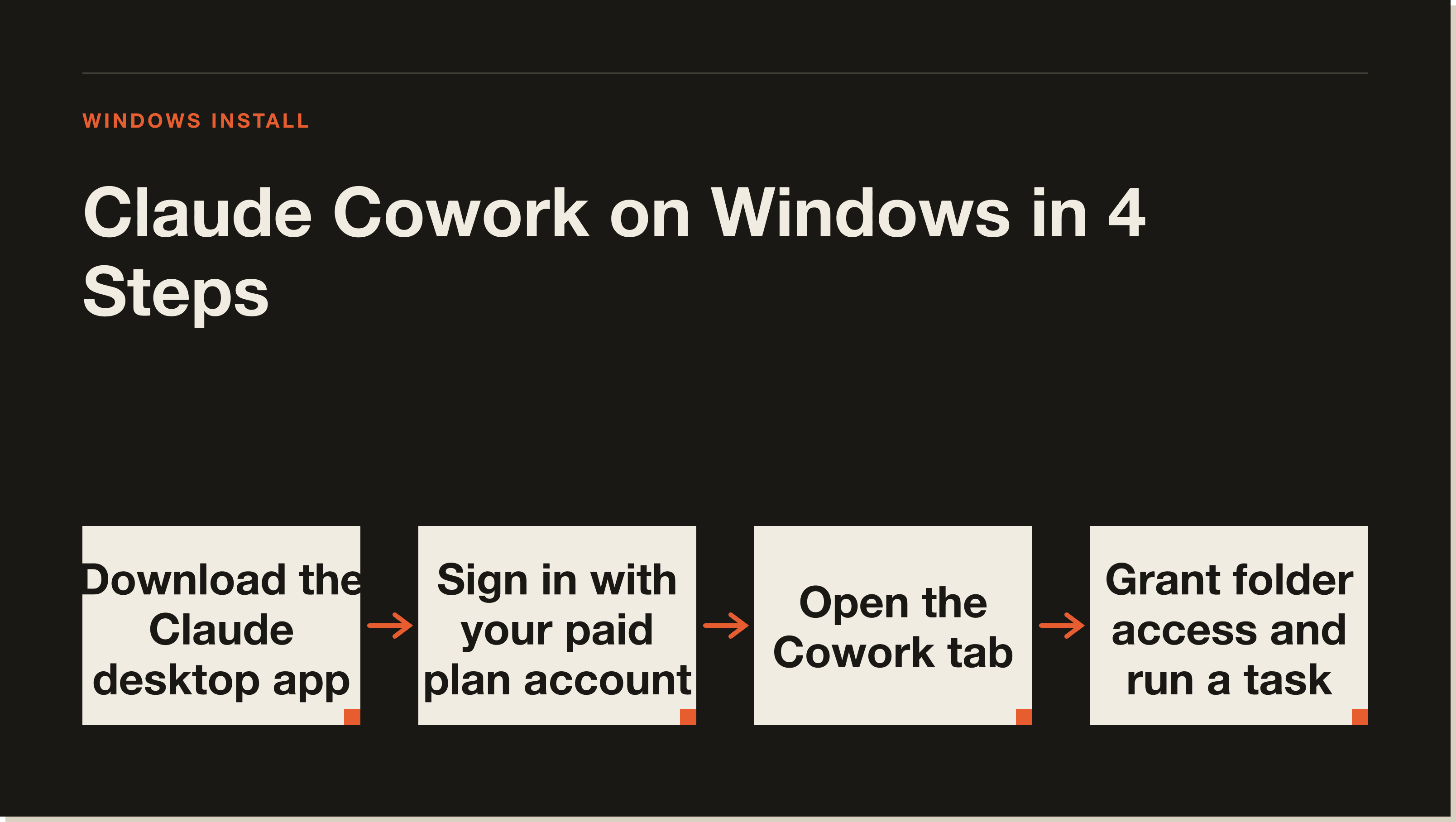
Claude Cowork works on Windows. You install it through the Claude desktop app, sign in, click the Cowork tab, and you are running. The same features available on Mac are available on Windows. Linux is not supported as of May 2026.
This is the install path from zero to first task. No terminal. No config files. The whole setup takes under 10 minutes if you have a Claude account already.
I'm Tom. I teach operators how to build with Claude, and I put together this guide from the official Anthropic setup flow and feedback from operators who went through the Windows install.
A paid Claude plan is required. Cowork is not available on the free tier. The Claude Pro plan at $20 per month is the entry point. Max and Team plans include Cowork as well.
You also need Windows 10 or Windows 11. Older versions of Windows are not officially supported.
Your computer needs to stay on and awake for scheduled tasks to run. If you use Cowork for scheduled inbox triage or recurring reports, the machine has to be running when the task fires. A laptop that sleeps overnight will miss scheduled runs.
Step 1: Download the Claude desktop app
Go to claude.com/download and download the Windows installer. It is a standard .exe file. Run it and follow the prompts. The install takes about 2 minutes.
Step 2: Sign in
Open the Claude desktop app and sign in with the account attached to your paid plan. If you already use Claude on the web, use the same account.
Step 3: Open the Cowork tab
Once signed in, you see three tabs at the top of the app: Chat, Code, and Cowork. Click Cowork. This is where everything happens.
Step 4: Grant folder access
Cowork works by giving Claude access to a specific folder on your computer. Click the folder icon or the setup prompt to choose which folder you want Cowork to be able to read and write. Start with one folder, such as your Documents folder or a project-specific folder. You can add more later.
Cowork only touches the folders you explicitly grant. It cannot access the rest of your machine without your permission.
Step 5: Run your first task
Type a task in plain English in the Cowork input. Something like "summarise the files in this folder and list any action items" is a good starting point. Cowork will read the files, complete the task, and return a finished result.
Cowork has a connector marketplace that works the same on Windows as on Mac. The available connectors include Gmail, Google Calendar, Google Drive, and Notion, along with others.
To connect an integration, click the Integrations or Connectors section in the Cowork sidebar. Choose the service you want to connect, click through the OAuth flow, and grant the permissions. Once connected, Cowork can read and act on that service's data as part of your tasks.
Anthropic ships three free plugin bundles: Productivity, Customer Support, and Finance. Each one packages a set of connectors and skills for that use case. You can install a bundle to get a useful starting set without configuring each connector individually.
If you need a service that is not in the marketplace, some operators bridge it through a Zapier MCP connector. That is a manual setup, but it extends Cowork's reach to hundreds of additional apps.
Cowork can run tasks on a schedule you set in plain language. "Every weekday morning, summarise my inbox and create a priority list" is the kind of prompt that becomes a scheduled task.
For scheduled tasks to run on Windows, the Claude desktop app needs to be open and your computer needs to be awake. Tasks do not run if the app is closed or the machine is asleep. If you need reliable scheduled automation that runs without a machine being on, that is a job for a server-based tool rather than Cowork.
Claude Code runs in a terminal and has full access to your entire machine, including file system operations and shell commands. It is built for software development.
Cowork runs in the desktop app in a sandboxed environment. It can only access the folders you explicitly grant it. It is built for knowledge work: documents, emails, reports, and files.
If you are not a developer and you want Claude handling your documents and email, Cowork is the right tool. If you are building software or automations that need full machine access, Claude Code is the right tool. For an honest side-by-side, read Claude Cowork vs Claude Code.
The app does not open after install: Try right-clicking the icon and selecting "Run as administrator" on first launch. Some Windows security settings block new apps from running normally on the first attempt.
Scheduled tasks are not running: Check that the Claude desktop app is open and not minimised to the system tray in a paused state. Windows battery saver and sleep settings can prevent tasks from firing. Keep the machine plugged in and set it to stay awake during scheduled task windows.
Connector OAuth is not completing: If the browser redirects to the right page but the connection does not register in Cowork, try closing and reopening the Claude desktop app after completing the OAuth flow.
Cowork tab is not visible: This usually means your account is not on a paid plan. Cowork requires Claude Pro, Max, or Team. Check your subscription at claude.ai/settings.
Yes. Cowork is supported on Windows 10 and Windows 11 through the Claude desktop app. Older versions of Windows are not officially supported.
The features are the same. The interface is the same. The install path is different because Windows uses an .exe installer rather than a .dmg. Everything else works identically.
No. Cowork requires an internet connection to communicate with Anthropic's servers. The AI processing happens remotely, not on your machine.
No. Cowork runs on your local machine, so your computer has to be on for it to work. This applies to scheduled tasks too. If your machine is asleep or off, scheduled tasks will not fire.
Cowork is included in Claude paid plans. The entry point is Claude Pro at $20 per month. There is no separate charge for using Cowork on Windows.
The install is the easy part. The real value comes from building workflows that run on a schedule and handle work while you are doing something else.
For a full tour of what Cowork can do, read 10 Real Claude Cowork Use Cases That Save You Hours. For the step-by-step setup of your first real task, read How to Use Claude Cowork.
Grab the free Claude Code Blueprint if you want to go deeper with the full Claude ecosystem, then join the 30-day challenge to build real systems in your business.
Five interactive lessons. Install Claude Code, build your first automation, and deploy it live on the internet — all in under an hour. Free, no coding required.
Grab the Blueprint →