← Back to Blog
How to Update Claude Code (and When You Don't Need To).
How to update Claude Code: when it auto-updates, when you run claude update yourself, and how to fix a stuck version. The honest version, by install method.
How to update Claude Code: when it auto-updates, when you run claude update yourself, and how to fix a stuck version. The honest version, by install method.
You update Claude Code by running claude update, but most people never need to, because the native installer updates itself in the background. The honest answer to "how do I update Claude Code" depends entirely on how you installed it. Native installs auto-update. Homebrew, WinGet, and Linux package managers do not, and need a manual command.
I'm Tom, and I run Claude Code all day on a native install that I have never once updated by hand. It just stays current. This post covers how updates actually work, the one command that forces an update now, and how to tell whether you are on the latest version or quietly stuck on an old one.
[CTA-BLUEPRINT]
You update Claude Code with one command: claude update. It applies the newest version immediately instead of waiting for the next background check. That is the manual path, and it works regardless of how you installed Claude Code.
The thing most guides skip is that you usually do not need it. If you used the native installer, the recommended method, Claude Code checks for updates on startup and periodically while running, then downloads and installs them in the background. The update takes effect the next time you start Claude Code. So the real question is not "what is the update command," it is "does my install update itself, or do I have to."
Whether Claude Code updates itself comes down to the installer you used. This is the single fact that resolves almost every "my Claude Code is out of date" confusion.
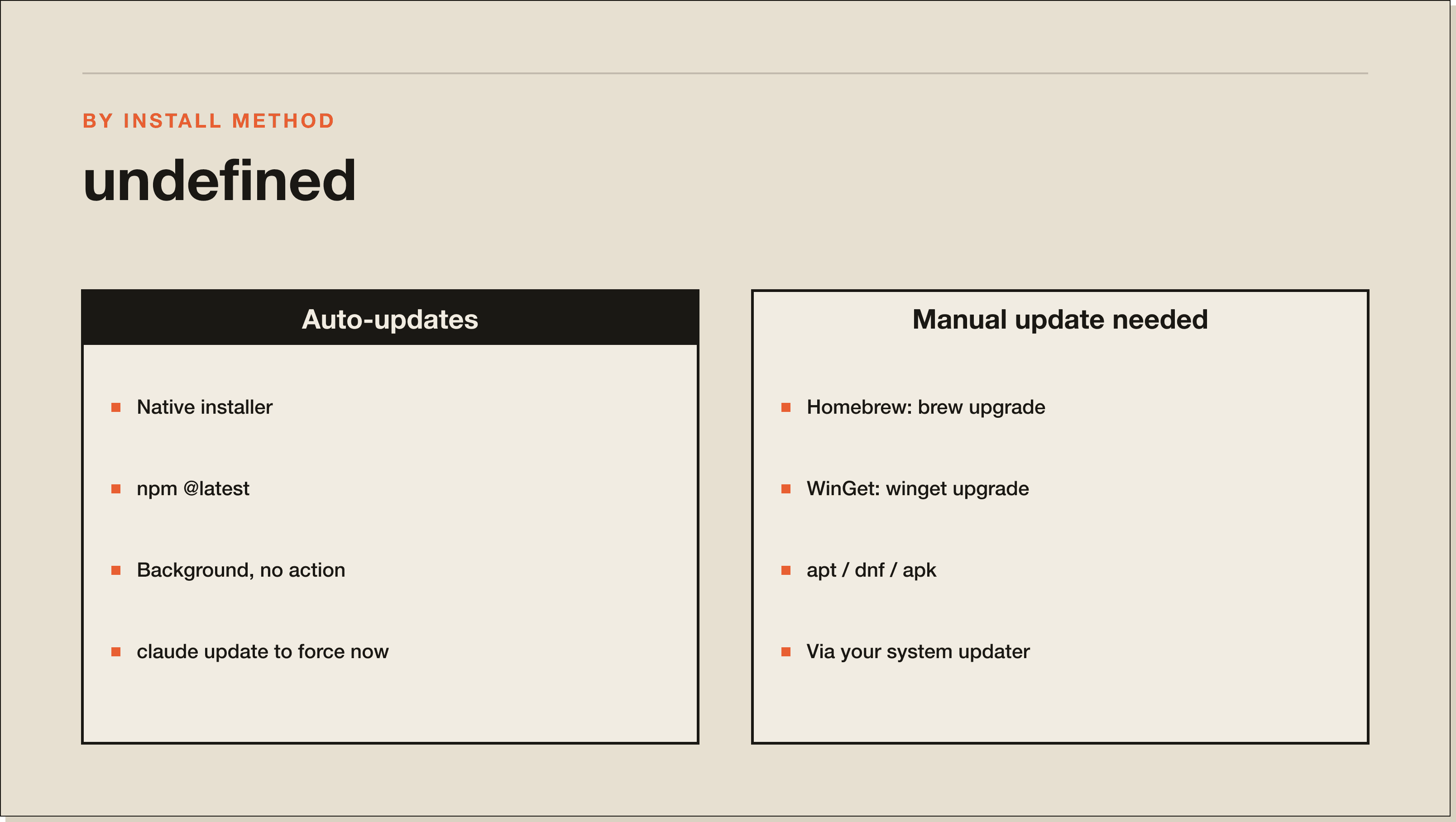
The native installer auto-updates in the background, and so does an npm global install on @latest. These keep you current with no action. Homebrew, WinGet, and the apt, dnf, and apk Linux package managers do not auto-update through Claude Code. Those arrive through your normal system upgrade workflow instead, so you upgrade them the way you upgrade everything else on that machine.
npm install -g @anthropic-ai/claude-code@latest to upgrade. Avoid npm update -g, which respects the original semver range and may not move you to the newest release.brew upgrade claude-code (or claude-code@latest for the latest channel).winget upgrade Anthropic.ClaudeCode.Check your current version with claude --version. To see the result of the most recent background update attempt, plus a broader health check of your install, run claude doctor. That second command is the one I actually use, because it tells you not just the version but whether anything is blocking an update.
If claude --version fails with command not found, you have an install or PATH problem rather than an update problem, and the fix is in the install troubleshooting docs. If the version simply looks old on a native install, claude doctor will usually tell you why the background update has not landed.
To apply an update immediately without waiting for the background check, run claude update. This is the command to reach for when a new feature shipped and you do not want to wait for the next automatic check, or when you are debugging and want to rule out an outdated version first.
claude updateOn Homebrew or WinGet, you can have Claude Code run the upgrade for you by setting CLAUDE_CODE_PACKAGE_MANAGER_AUTO_UPDATE to 1. It then runs the upgrade in the background when a new version is available and prompts you to restart. This is the closest those package-manager installs get to the native installer's hands-off behaviour. For more of the commands that make up the daily workflow, see my Claude Code commands reference and the how to use Claude Code guide.
You can pin which release channel Claude Code follows with the autoUpdatesChannel setting in your settings.json. Set it to "latest" for new features as soon as they ship, or "stable" for a version that is typically about a week old and skips releases with major regressions. I run latest, because I want the new features, and I accept the occasional rough edge as the price.
{
  "autoUpdatesChannel": "stable"
}
To stop background updates entirely, set DISABLE_AUTOUPDATER to "1" in the env block of your settings. That stops the background check while leaving claude update working, so you control exactly when updates land. To block every update path including the manual command, use DISABLE_UPDATES instead. Most people should leave auto-updates on. Pinning is for teams that need version consistency, not for individuals.
If Claude Code looks stuck on an old version, the fix is almost always one of three things. Start with claude doctor, which reports the result of the most recent update attempt and lists the available fixes for whatever is blocking it.
claude doctor lists the fix. Reinstalling with the native installer sidesteps npm permission issues entirely.claude --version reports an old number even after updating, you may have two installs or a leftover shell alias. The install troubleshooting guide has a "check for conflicting installations" step that finds and removes the duplicate.Force the newest version with claude update, then re-run claude --version to confirm it moved. If it still has not, claude doctor is the definitive diagnostic.
[CTA-BLUEPRINT]
The command is claude update. For npm installs, run npm install -g @anthropic-ai/claude-code@latest. Homebrew users run brew upgrade claude-code, and on Windows, winget upgrade Anthropic.ClaudeCode. On a native install you rarely need any of these, because Claude Code auto-updates in the background.
Native installs and npm installs on @latest update automatically in the background, and the update takes effect the next time you start Claude Code. Homebrew, WinGet, and Linux package manager installs do not auto-update through Claude Code, so you upgrade those through your normal system update workflow.
Run claude --version to see your current version. For a fuller picture, including the result of the last background update attempt and any problems blocking it, run claude doctor. That second command is the better diagnostic when a version looks stuck.
The most common reason is that you installed through Homebrew, WinGet, or a Linux package manager, none of which auto-update through Claude Code. Run that tool's upgrade command. If you are on a native or npm install that should auto-update, run claude doctor, which reports what is blocking the background update, such as a non-writable npm global directory.
Set DISABLE_AUTOUPDATER to "1" in the env block of your settings.json to stop the background check while keeping claude update available. To pin a release channel instead of stopping updates, set autoUpdatesChannel to "stable". To block all updates including the manual command, use DISABLE_UPDATES.
The latest channel gives you new features as soon as they ship. The stable channel keeps you on a version that is typically about a week old and skips releases with major regressions. Set your choice with the autoUpdatesChannel setting, or for Homebrew, by choosing the claude-code cask for stable or claude-code@latest for latest.
autoUpdatesChannel, minimumVersion, and DISABLE_AUTOUPDATER settings.Staying current is the easy part. The leverage is in knowing what to point Claude Code at once you are set up. My free Claude Code Blueprint walks you through your first real build in about sixty minutes, no coding required. Start there.
Five interactive lessons. Install Claude Code, build your first automation, and deploy it live on the internet — all in under an hour. Free, no coding required.
Grab the Blueprint →