Claude Agent Mode: Background Sessions You Monitor From One Screen.
Claude agent mode (agent view) lets you dispatch multiple background Claude sessions and monitor them all from one screen with the claude agents command. Here is how it works.
Claude agent mode is what Anthropic calls agent view: a full-screen monitor you open with claude agents that shows every background Claude session you have running, which ones need your input, and which ones are done. You dispatch tasks from it, watch them run without being attached, and step in only when one needs you.
It is a research preview as of May 2026. It requires Claude Code v2.1.139 or later. Check your version with claude --version.
I'm Tom. I teach Claude Code operators how to run real production workflows, and agent view is one of the most underused features in the current Claude Code release.
claude agents opens a full-screen monitor. Dispatch tasks from the bottom input, watch state by row, and attach when a session needs you.
What agent mode actually is.
When most people hear "agent mode" in Claude context, they think of a setting that makes Claude act more autonomously in a single session. Claude agent mode in Claude Code is something more specific: a separate process manager for background sessions.
Each background session is a full Claude Code conversation that keeps running without a terminal attached. You can dispatch it, close the terminal, go do other work, and check back when you are ready. The session keeps working.
Agent view is the interface for managing those sessions. It shows you what every background session is doing and which ones need your input. You can reply to a session from agent view without opening the full conversation.
How to open agent mode.
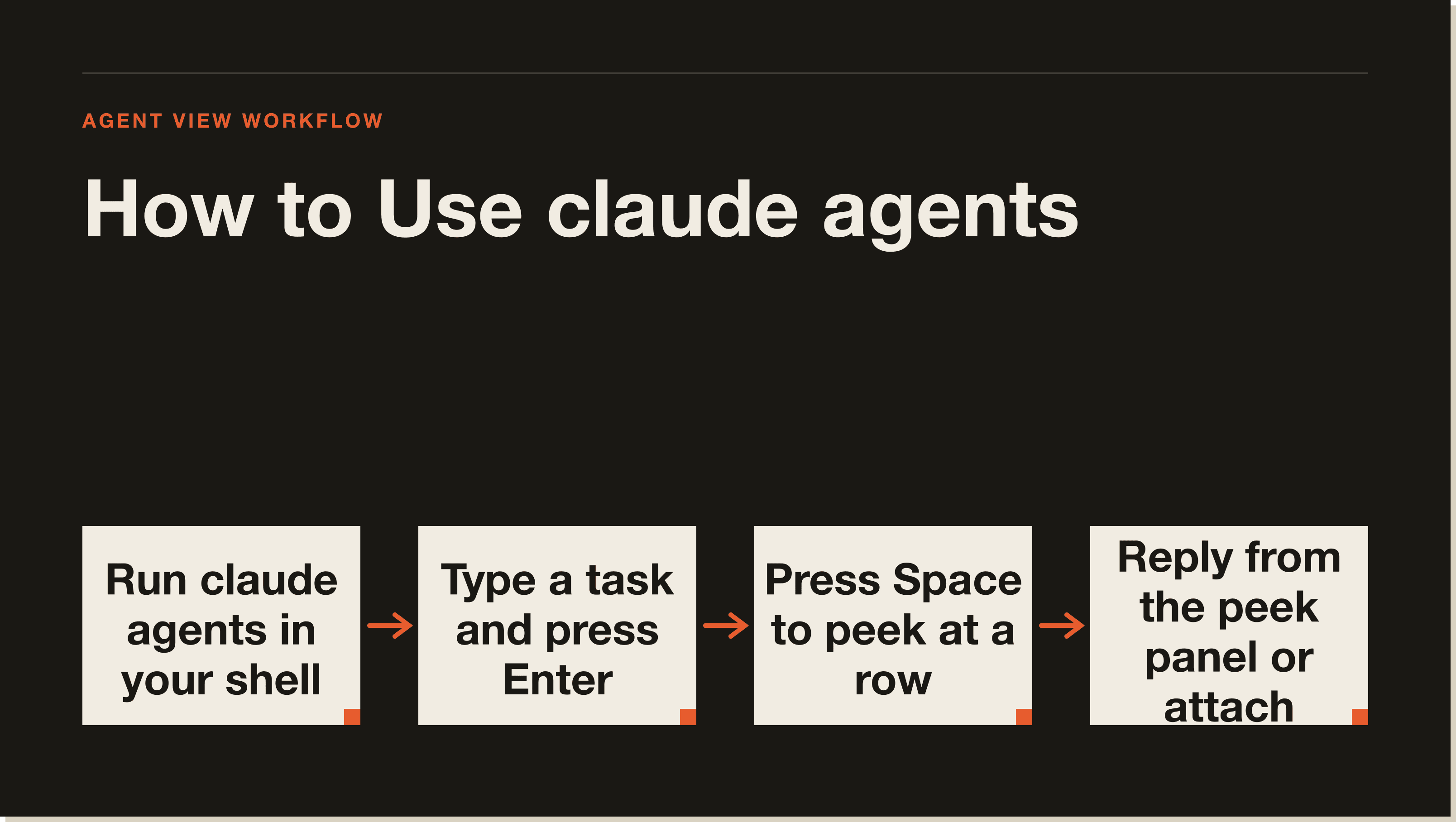
Run this in your shell:
bash
claude agents
Agent view takes over the full terminal. It shows a session list grouped by state at the top and a dispatch input at the bottom. Press Esc at any time to return to your shell. Your sessions keep running while you are away.
Dispatching a task.
Type a task description in the input at the bottom and press Enter. A new background session starts and appears as a row in the list.
Every prompt you enter in agent view starts its own new session. Typing another prompt and pressing Enter launches a second session alongside the first rather than sending a follow-up to the current one. That is the intended behaviour. Agent view is for managing multiple independent tasks, not continuing a single conversation.
Reading session state.
Each row shows a state icon. The icon animates while the session is actively working. It turns yellow when the session is waiting on input from you. It dims when the session is idle. It turns green when the task is done. Red means it ended in an error.
Row summaries are generated by a Haiku-class model and refresh every 15 seconds while a session works, plus once when each turn ends. The summary tells you what the session is currently doing without you needing to open the full transcript.
Peeking and replying without attaching.
Press Space on a selected row to open the peek panel. It shows the session's most recent output or the question it is waiting on. You can type a reply in the peek panel and press Enter to send it without leaving agent view.
This is the most efficient way to handle sessions that need input. You do not need to open the full conversation, you see exactly what it needs, you reply, and you go back to the list.
Attaching to a full session.
Press Enter or the right arrow key on a row to attach to it. Agent view is replaced by the full interactive session, exactly as if you had run claude in that directory. Press the left arrow on an empty prompt to detach and return to agent view.
Detaching never stops the session. It keeps running in the background.
File isolation with worktrees.
Before a background session edits files, Claude automatically moves it into an isolated git worktree under .claude/worktrees/. This means parallel background sessions can each edit files without overwriting each other's changes.
You do not need to configure this. It happens automatically. The session works in its own isolated checkout. When you delete the session from agent view, the worktree is cleaned up.
The supervisor process.
Background sessions are kept alive by a supervisor process that is separate from your terminal. It starts automatically the first time you dispatch a background session. Sessions survive terminal closes, agent view closes, and sleep. They do not survive a full machine shutdown.
Idle sessions that have been sitting unattached for about an hour are stopped by the supervisor to free resources, but their state stays on disk. The next time you peek, reply to, or attach to a stopped session, the supervisor restarts it from where it left off.
Keyboard shortcuts worth knowing.
✓`Space` — Open or close the peek panel for the selected row
✓`Enter` or `→` — Attach to the selected session
✓`←` — Detach and return to agent view
✓`Ctrl+T` — Pin a session to keep its process running while idle
✓`Ctrl+R` — Rename a session
✓`Ctrl+X` — Stop a session (press twice to delete it)
✓`?` — Show all shortcuts
Agent mode vs agent teams vs subagents.
These three things are related but different.
Agent view (agent mode) is a monitor for background sessions that each run independently. The sessions do not communicate with each other. You coordinate them.
Agent teams are multiple coordinated sessions with a shared task list and messaging. The sessions communicate directly with each other. This is experimental and disabled by default.
Subagents are workers spawned inside a single session. They do a side task and return a summary. They are not visible in agent view.
What Claude Code version do I need for agent mode?
Agent view requires Claude Code v2.1.139 or later. Check your version with claude --version. Run claude update to install the latest version.
Is agent mode the same as auto mode?
No. Auto mode (or auto-accept mode) is a permission setting that lets Claude run without stopping for each edit approval. Agent mode (agent view) is a separate process manager for background sessions. They are different features.
Can I use agent mode on Claude for the web?
No. Agent view is a Claude Code feature that runs locally. It is not available in the Claude.ai web interface. For cloud-hosted sessions, look at Claude Code on the web.
Do background sessions use my subscription quota?
Yes. Each background session uses quota the same as an interactive session. Running many background sessions in parallel multiplies your usage proportionally.
What happens to my sessions if I restart my computer?
Sessions that were running when the machine shut down show as failed when you next open agent view. Attach, peek, or reply to any of them and the session restarts from where it left off. Sleep alone preserves sessions and the supervisor reconnects on wake.
Use agent mode to stop watching Claude work.
The biggest productivity gain from agent view is simple. Stop watching Claude work in real time. Dispatch a task, check back when it is done, spend that time on something else.
That is the shift most operators have not made yet. They sit and watch Claude Code run because they feel they need to be present. Agent view lets you be present only when it matters.
Five interactive lessons. Install Claude Code, build your first automation, and deploy it live on the internet — all in under an hour. Free, no coding required.