← Back to Blog
How to Install the Claude Chrome Extension.
Install the Claude Chrome extension in four steps: open the Web Store, click Add to Chrome, sign in with your paid plan, and grant site access.
Get your free AI audit.
Book a call →Install the Claude Chrome extension in four steps: open the Web Store, click Add to Chrome, sign in with your paid plan, and grant site access.
You can download the official Claude extension free from its Chrome Web Store page. Click Add to Chrome, then sign in with your Claude account. You need a paid plan (Pro, Max, Team or Enterprise) to use it, because free accounts don't get access.
I'm Tom. I build AI systems for business owners and have been testing Claude for Chrome since it expanded to Pro, Team, and Enterprise plans on 18 December 2025. The install itself takes under two minutes. The part that trips most people up is the permissions prompt and the site-access step after that, so this walkthrough covers both in detail.
---
---
The Claude Chrome extension is available on Pro ($20/mo), Max ($100/mo), Team, and Enterprise plans. Free accounts do not have access to the browser extension. Anthropic launched it as a limited pilot to 1,000 Max plan users in August 2025, expanded it to all Max subscribers in November 2025, and opened it to Pro, Team, and Enterprise on 18 December 2025.
If you are on a paid Claude plan today, you have access. Check your plan at anthropic.com/pricing if you are not sure which tier you are on.
---
The official download is the Claude listing on the Chrome Web Store, published by Anthropic. That is the only legitimate source. Do not install Claude extensions from third-party sites or unofficial listings.
The extension works in any Chromium-based browser: Chrome, Edge, Arc, and Brave all work. Firefox and Safari are not supported.
---
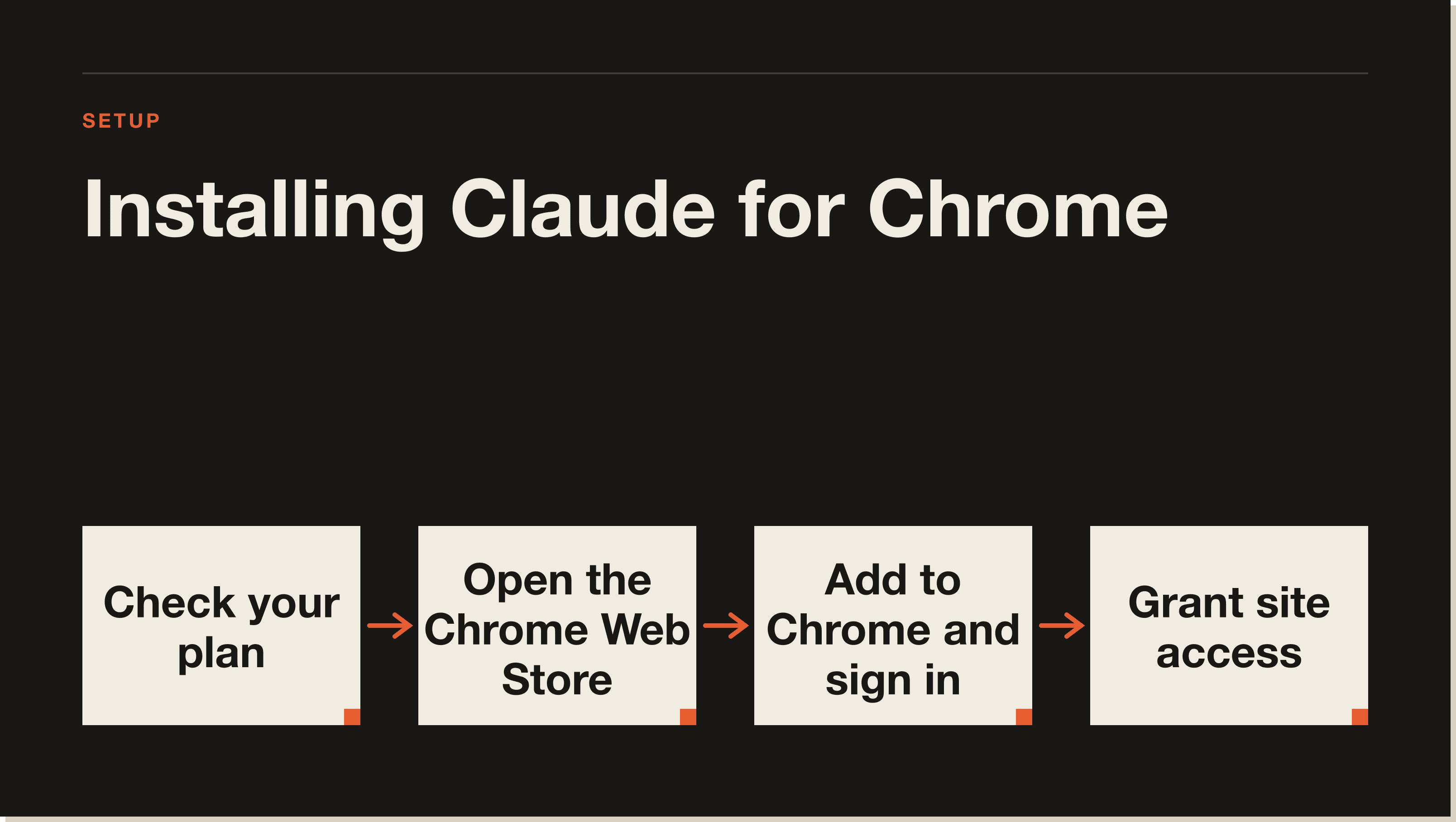
The full installation takes four steps. Each one is covered below with exactly what you will see on screen.
Navigate to the Claude page in the Chrome Web Store. Confirm the publisher is Anthropic before you proceed. You are looking for the verified Anthropic badge on the listing.
Alternatively, open claude.ai/download and follow the browser extension link from there. That page links directly to the correct Store listing and is the route Anthropic recommends in their own documentation.
Click the blue Add to Chrome button. Chrome will show a permissions dialog listing what the extension can access. The dialog covers reading and changing data on websites you visit, which is what gives Claude the ability to see the active page.
Click Add extension to confirm. The extension installs in a few seconds and the puzzle-piece icon appears in your browser toolbar.
Click the Claude extension icon in the toolbar. A sign-in panel opens inside the browser. Log in with the same email and password you use at claude.ai.
If you are on a Team or Enterprise plan and your organisation uses SSO, sign in through your organisation's SSO flow rather than directly. The extension inherits your session from claude.ai, so if you are already signed in there, clicking the icon may authenticate you automatically.
After signing in, open the extension settings panel. This is where you control which sites Claude can read. Access is off by default for every site.
Add the sites you want Claude to be able to see. A sensible starting point is one or two sites you use for research or daily work: a CRM, a news site, a competitor's pricing page. You can revoke access at any time by removing the site from the list.
You will also see an option to choose between standard mode and autonomous mode. Standard mode asks for confirmation before Claude takes high-risk actions like submitting a form or clicking a purchase button. Autonomous mode lets Claude chain actions without a confirmation step, but Anthropic keeps additional safeguards active for the most sensitive action types even in that mode. Leave it on standard mode until you are familiar with what Claude does in your specific workflow.
---
Once the extension is installed and you have granted access to a site, navigate to a page on that site and open a new Claude conversation at claude.ai. Claude will confirm it can see the page content. From there, you give it instructions in plain language: summarise this article, extract the pricing tiers from this table, draft a reply to this email thread.
The Claude Chrome extension guide covers the eight business use cases in detail, including competitive research across multiple tabs and form completion workflows. That post is the right next read once installation is done.
---
The permissions prompt is the step where most people hesitate. Chrome lists the extension's access as "read and change all your data on websites you visit," which sounds broader than it is.
In practice, the extension reads the content of pages you have explicitly enabled in the settings. Anthropic also maintains a category blocklist that prevents the extension from reading financial services sites, adult content, and pirated content regardless of your settings. The "all websites" phrasing in Chrome's generic prompt is Chrome's default language, not a description of what Claude actually touches.
For Team and Enterprise users, admins can configure org-wide allowlists and blocklists from the admin panel. That is the recommended setup before rolling the extension out to a team.
---
Standard mode is the right choice for most users. Claude asks for confirmation before taking any action that could be difficult to reverse: form submissions, button clicks, purchases. You see what it is about to do before it does it.
Autonomous mode is useful for repetitive multi-step workflows you have already tested and understand. Before switching to autonomous mode for any workflow, run it in standard mode at least once to see the full action chain. Anthropic's adversarial testing found that safety mitigations in standard mode block the significant majority of prompt injection attempts that would otherwise redirect Claude's actions. Do not run autonomous mode on pages containing client data or confidential documents unless you are on an Enterprise plan with appropriate data processing agreements in place.
Read the Claude Code on the web post for how autonomous mode fits into larger developer workflows where Claude is acting across the terminal and the browser simultaneously.
---
A few things that commonly go wrong on first install.
The extension icon appears in the toolbar but does not respond. This usually means you are not signed in to claude.ai in the same browser profile. Sign in at claude.ai first, then click the extension icon again.
Claude says it cannot see the page. Check the extension settings panel and confirm the site is on your access list. Claude cannot read a site that is not explicitly enabled, even if the extension is installed and you are signed in.
The permissions prompt did not appear. Some organisations run Chrome policies that block extension permissions prompts. Check with your IT team about installing browser extensions under a managed Chrome policy.
The extension is not available in the Chrome Web Store. Some regions have restricted access to the Claude extension during staged rollouts. Check anthropic.com/pricing to confirm the extension is available on your plan in your region.
---
The extension itself is free to download from the Chrome Web Store. Using it requires an active paid Claude subscription. The lowest-cost access is the Pro plan at $20 a month. There is no free trial of the browser extension that is separate from a Claude subscription.
Team and Enterprise plans add org-wide configuration controls, admin allowlists and blocklists, and data processing agreements for regulated industries. If you handle client data or operate under any compliance framework, those plan tiers are the ones worth evaluating before granting the extension access to sensitive sites.
---
Right-click the Claude icon in the Chrome toolbar and select Remove from Chrome. Chrome asks for confirmation and removes the extension completely. All site access permissions are cleared when you uninstall.
If you want to pause access without uninstalling, you can disable the extension from Chrome's extension management page at chrome://extensions. Disabling removes Claude's ability to read any page until you re-enable it. The site access list you configured is preserved while the extension is disabled.
---
---
Open the Claude listing in the Chrome Web Store, click Add to Chrome, and accept the permissions prompt. After installation, click the extension icon and sign in with your paid Claude account. Then open the extension settings and add the sites you want Claude to be able to read.
Pro, Max, Team, and Enterprise plans all support the Chrome extension as of 18 December 2025. Free accounts do not have access. Pro starts at $20 a month. Team and Enterprise plans add admin controls and data processing agreements for organisations that need them.
The only official download is the Claude listing on the Chrome Web Store, published by Anthropic. You can also reach it via claude.ai/download. Do not install Claude browser extensions from any other source.
After installing and signing in, grant access to the sites you want Claude to read in the extension settings panel. Navigate to one of those sites, open a new conversation at claude.ai, and give Claude instructions in plain language. Claude reads the active page and responds based on the content it can see. The full walkthrough of use cases is in the Claude Chrome extension guide.
The extension is free to download. Using it requires an active paid Claude subscription starting at $20 a month for Pro. There is no separate free tier for the browser extension.
Right-click the Claude icon in the Chrome toolbar and select Remove from Chrome, then confirm. All site access permissions are cleared on removal. To pause without uninstalling, disable the extension at chrome://extensions.
The extension works in Chrome and other Chromium-based browsers: Edge, Arc, and Brave. Firefox and Safari are not supported at launch. If your team uses a mix of browsers, only users on Chromium-based browsers can use the extension.
Claude can only read pages you have explicitly added to the access list in the extension settings panel. Every site is off by default. Open the settings panel, add the site URL, and navigate back to the page. If Claude still cannot read it, confirm you are signed in to the same Claude account in the same browser profile.
---
---
Five interactive lessons. Install Claude Code, build your first automation, and deploy it live on the internet — all in under an hour. Free, no coding required.
Grab the Blueprint →