← Back to Blog
Claude Code Tips: 10 Hacks From 1,000 Hours In.
10 Claude Code tips from 1,000 hours of real use: auto mode, plan mode, Superpowers plugin, CLAUDE.md, token optimizer, and more.
10 Claude Code tips from 1,000 hours of real use: auto mode, plan mode, Superpowers plugin, CLAUDE.md, token optimizer, and more.
Claude Code tips are the specific settings, tools, and habits that separate people who ship working systems from people who treat it like a chat window. Most users never configure any of this, and it shows in their results.
I'm Tom. I've spent close to 1,000 hours inside Claude Code, mentored over 50 students through the build process, and watched the same gaps show up again and again. The people who actually get things done all set Claude Code up the same way. Everyone else just types prompts and hopes. This post covers the 10 hacks I use on every build, starting with the ones you can install in under a minute.
There are two types of Claude Code users right now. The first type sits there clicking approve on every single permission, one at a time. The second type runs everything on auto mode and lets Claude build while they get on with something else. Six months ago, clicking every permission was normal. Today, there is no reason to work that way. These 10 tips are how you move from the first group to the second.
If you are new to Claude Code, start with the beginner's guide to Claude Code first. Once you have the basics down, come back here and add these on top.
Auto mode is the single biggest productivity unlock in Claude Code. When it is on, Claude executes your tasks without stopping to ask permission for every file read or command. You are not giving up safety to get this. Auto mode has specific guardrails built in. Claude cannot execute certain commands, and you can add your own rules to tighten it further. It blocks dangerous operations automatically.
To enable it in the terminal, press Shift+Tab to cycle through modes. In the Claude Code desktop app, click the dropdown at the bottom of the screen. Once you see auto mode is on, you will never go back to clicking approve one permission at a time.
Plan mode is accessed the same way as auto mode: press Shift+Tab in the terminal to find it. A lot of people skip this, and it is one of the most expensive mistakes you can make with Claude Code.
When you give Claude a task and let it run without a plan, it will come back confidently with results. That does not mean those results are right. If Claude builds the wrong thing, you will burn a large number of additional tokens fixing bugs and unwinding work that a two-minute plan would have prevented.
In plan mode, Claude cannot build anything. Its only job is to produce a plan and get your approval. Once you review and sign off, Claude gives you the option to execute in auto mode, hands-free. This is the correct workflow: plan first, then build.
/remote-control.Have you ever been in the middle of a Claude Code session and needed to step away? You do not have to lose the context. Type /remote-control in the terminal and Claude will generate a link. When you pick up your phone and open the Claude app, you will see a remote control notification connecting directly to the session running on your machine. You can continue the conversation from the back of a taxi or anywhere else. The same command works in the desktop app.
The Superpowers plugin is the best build tool I have come across, and I have tried several. It gives Claude Code 14 skills and one hook out of the box. The ones I use most often are brainstorming, writing plans, subagent-driven development, code review, executing plans, and dispatching parallel agents.
The workflow it enables looks like this:
To install it in the desktop app, go to Customize, then Browse Plugins, and search for Superpowers. If it does not appear in search, the terminal fallback is /plugin install superpowers. Once installed, you do not need to use the slash command every time. Say "let's brainstorm this" or "create a plan" in any session and Superpowers will pick up the keywords and invoke the right skill automatically. You can read more about building with Claude Code agents to understand how the parallel execution works.
A CLAUDE.md file is a set of instructions that Claude reads before it does anything inside your project. It is how you bake your standards and context directly into every session, so you are not re-explaining yourself from scratch each time. Andrej Karpathy, one of the founders of OpenAI, published a minimal CLAUDE.md template built around four rules that I now include in every project:
/goal command, which lets Claude work and keep going until a defined criterion is met.If you already have a CLAUDE.md file and want to add these rules without losing what you have, paste them in and ask Claude to merge them with your existing file. For a deeper look at how to structure this, see the post on Claude Code memory.
Skills are reusable slash commands that encode your own workflow. If you do the same multi-step task repeatedly, there is a skill for it. Instead of manually walking through the same process every time, you invoke the skill and let it run.
I have a content-creator skill that takes a YouTube transcript, generates 20 to 30 hook variations using my own hook frameworks, scores each one on four criteria using direct response marketing principles, and then writes body content once I pick a hook. I also have an AI image factory connected to fal.ai with the OpenAI image model. I gave Claude a folder of ads and posts that performed well, had it analyze them, and had it produce image recipes for my social media content. The skill pulls from those recipes and generates five or six image variations per session.
There is a built-in skill creator in the desktop app from Anthropic. Ask Claude to use the skill creator skill to help you write your own. Generic skills you download from the internet often get deleted because they lack your personal context. Skills built around your own process are the ones that actually stick. The Claude Code skills post covers this in more detail.
WhisperFlow is a voice-to-text tool that types at whatever speed you talk. I talk at 108 words per minute, which is faster than most people type. In WhisperFlow I have dictated over 681,000 words. It fixes grammar and spelling as it transcribes.
The shortcut is FN+spacebar on Mac. A recording bar appears at the bottom of the screen. You talk, you press FN again to stop, you click where you want the text to land, and it appears. Maximum recording length is 6 minutes per clip.
If you are in an office and do not want to speak aloud, plug in headphones and whisper into your mic. That is literally why it is called WhisperFlow. You get the productivity gains either way.
When you start installing skills and MCPs, your context window gets heavier. Every session starts with Claude loading all your skills and MCP tools, and then reading your CLAUDE.md file on top of that. Some of my students start sessions at 15% context used before they have typed a single word. I try to clear and create a handoff file around the 35 to 40% mark, because past that point you are burning tokens at a much higher rate without getting better output.
The token optimizer is a skill that shows you:
For reference: last 30 days, my token usage would have cost over $2,000 at API pricing. With the max plan, I am paying around 100 pounds per month. The token optimizer helps you understand where that gap comes from and where to trim. The Claude Code commands reference has more on managing your session budget.
Claude Code desktop has a Routines tab. You can create routines that run on a schedule, either locally on your device or hosted remotely. The remote option matters because a local schedule will not run if your laptop is closed. That is why a lot of people use Mac minis for always-on automation.
Setting up a routine is as simple as telling Claude: "Run this on a routine at this time." Claude will schedule it inside the Routines tab. You can hook routines up to skills, MCP tools, and automations. A weekly revenue report every Monday at 8am is a one-sentence instruction.
This is what turns a skill or workflow into a genuine agent: it runs without you, on a recurring basis, without needing you to trigger it. Learn more about what you can build here in the Claude Code use cases post.
This is the one most people skip, and it is the difference between Claude Code starting from scratch in every session and getting smarter the longer you use it.
A second brain is not complicated. It is a folder of files on your computer. That is the whole thing. I use Obsidian because it is a file viewer that lets you interlink markdown files, but the underlying asset is just files and folders. Nothing more complex than that.
Here is what I keep in mine: a voice profile, a brand spine with colors and fonts and positioning, a CSS design framework that every new page or funnel pulls from so the design stays consistent, previous content pieces I can reference by name, and business context I want Claude to know. The CLAUDE.md file for each project lives here too.
When I am in a Claude Code session, I can say "pull the same structure as last week's newsletter" and Claude knows exactly what that means because the file exists. I can drag files in directly, or just reference them by name. The context is always there. For a deeper walkthrough on the MCP side of this, see the post on Claude Code MCP.
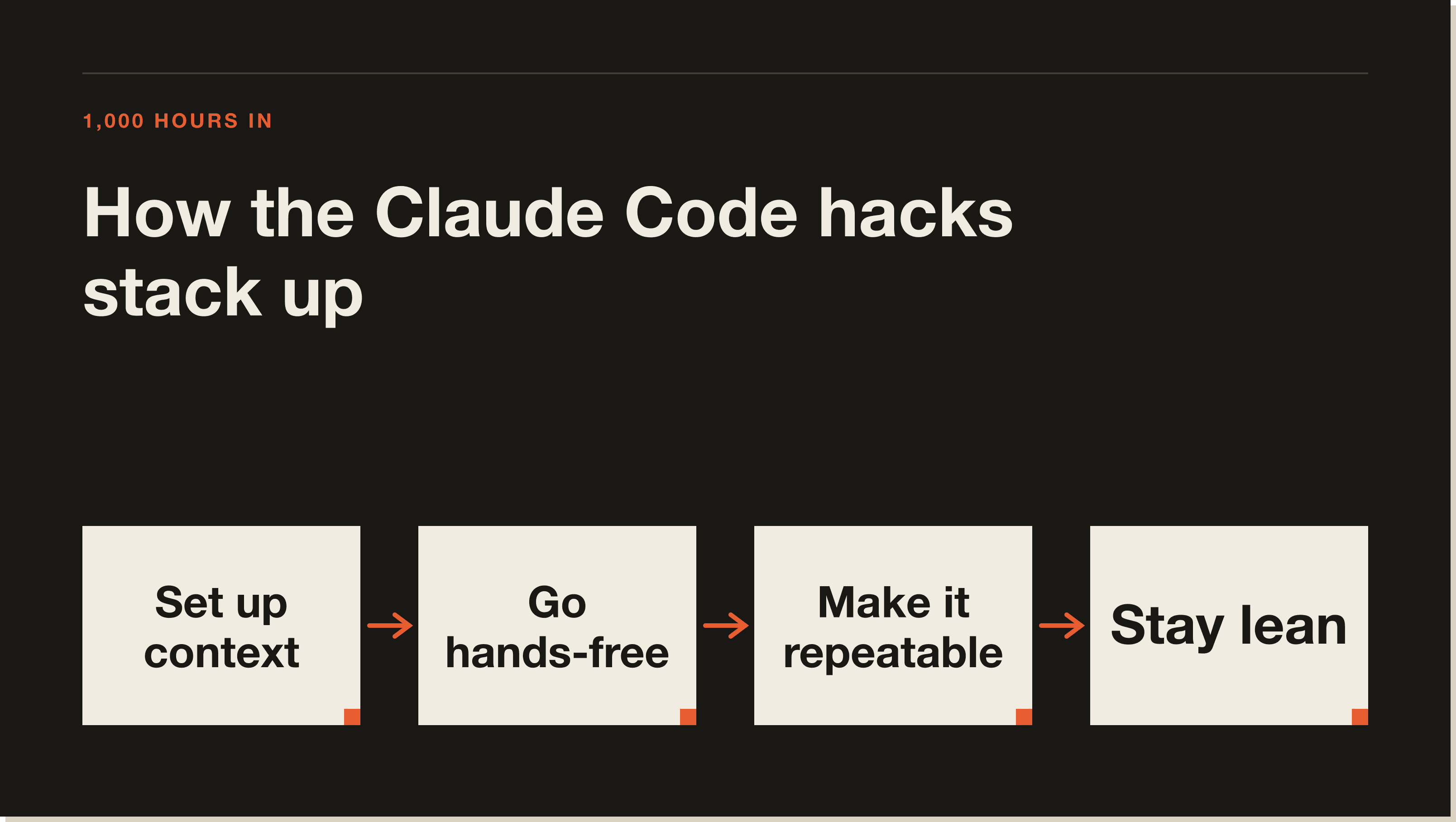
Each of these tips works on its own. Together, they shift Claude Code from a chatbot you type at into a system that runs. Auto mode and plan mode handle the build quality. The Superpowers plugin and skills handle the repetitive work. WhisperFlow speeds up input. The token optimizer keeps sessions lean. Scheduled agents run things while you sleep. And the second brain makes every session smarter than the last.
The setup takes an afternoon. The payoff runs every day after that.
Auto mode lets Claude Code execute tasks without pausing to ask for permission on every action. It is available on the Claude Pro plan and the Max plan, in both the desktop app and the terminal. In the terminal, press Shift+Tab to switch between modes. Auto mode includes built-in guardrails that block dangerous commands, and you can add your own rules to customise its behaviour.
Plan mode is a session setting that prevents Claude from writing or modifying any code until you have approved a written plan. Claude's only job in plan mode is to think through the task, surface trade-offs, and produce a structured plan for your review. Once you approve it, you can execute in auto mode. It is the most reliable way to avoid building the wrong thing and wasting tokens fixing it.
A CLAUDE.md file is a markdown file that Claude reads at the start of every session before doing anything. It contains instructions, rules, and context specific to your project. You can use it to set coding standards, define what files Claude is allowed to touch, specify your goals, and include any business context Claude needs. Andrej Karpathy's four-rule template (think before coding, simplicity first, surgical changes, goal-driven execution) is a strong starting point.
Claude Code skills are reusable slash commands that encode a multi-step process. You invoke a skill with a /skill-name command, and Claude runs through the defined process automatically. Skills can include question gates, generate multiple outputs, score results, and chain into other skills. You can install community skills, or build your own using the skill creator built into the Claude Code desktop app. Building your own with your personal context and process is almost always more effective than importing a generic one.
The token optimizer is a skill that audits your context window overhead and identifies where tokens are being consumed before you even start a session. It shows your CLAUDE.md size, loaded skills, MCP tools, and memory files, and flags which ones you are not actively using. It estimates how much your usage would cost at API pricing versus a flat plan. Installing it and trimming unused skills and MCPs can recover a meaningful percentage of your session budget.
Scheduled agents use the Routines tab in Claude Code desktop to run a skill, automation, or workflow on a timed schedule. You can run them locally on your device or remotely in the cloud. Remote is better for reliability because a local schedule requires your laptop to be open and running at the scheduled time. To create a routine, just tell Claude what you want to run and when, and it will set it up in the Routines tab.
Persistent memory in Claude Code means keeping a collection of files on your computer that Claude can reference across sessions. It can contain your voice profile, brand guidelines, previous work, business context, and any other files you want Claude to pull from. Tools like Obsidian make it easy to view and interlink these files. When you reference previous work in a Claude Code session, by name or by context, Claude can pull that file and use it. Without this, Claude starts fresh every session with no knowledge of your history or preferences.
If you want to go beyond tips and actually map out what to automate in your business, then build it yourself with hands-on support, that is what the blueprint is for. It walks you through the full setup, from your first CLAUDE.md file to running scheduled agents on real business tasks.
Five interactive lessons. Install Claude Code, build your first automation, and deploy it live on the internet — all in under an hour. Free, no coding required.
Grab the Blueprint →