← Back to Blog
Claude Chrome Extension Not Working? Fixes.
If your Claude Chrome extension is not working, the most common cause is a plan mismatch or missing site access, not a broken install. Here are the fixes for every failure mode.
If your Claude Chrome extension is not working, the most common cause is a plan mismatch or missing site access, not a broken install. Here are the fixes for every failure mode.
The most common reason the Claude Chrome extension stops working is not a broken install. It is that the extension was never granted access to the page you are on, or your account is not on a plan that supports it. Most people reinstall and get the same result because the root cause stays in place.
I have hit every one of these failure modes building browser workflows for clients. The fix is almost never reinstalling. It is one specific permission, plan setting, or auth state that needs to be corrected. This post goes through each symptom and the exact fix.
A quick note on access: Anthropic launched the extension as a pilot to 1,000 Max plan users in August 2025, expanded it to all Max subscribers in November 2025, then opened it to Pro, Team, and Enterprise on 18 December 2025. Free accounts have never had access. That timeline matters because a lot of the "greyed out" and "upgrade required" reports online date from before December 2025, when Pro users were still locked out.
---
---
If the extension icon is not showing in your Chrome toolbar after installation, the extension is installed but hidden.
Open the Extensions menu (the puzzle-piece icon at the top right of Chrome) and look for "Claude AI for Chrome" in the list. Click the pin icon next to it to lock it into the toolbar. Chrome hides newly installed extensions by default. That does not mean the install failed.
If the extension does not appear in the Extensions list at all, go to chrome://extensions in the address bar and check that the extension is enabled. Toggle it on if it is switched off. If it is missing entirely, reinstall from the Claude AI for Chrome listing on the Chrome Web Store. The extension ID in the Chrome Web Store URL is mmpfdbkbpokgghegejphmpmpnjncehip, which you can use to verify you're installing the official Anthropic build rather than a clone.
One more thing worth checking: Edge, Arc, and Brave all support the extension and run it the same way Chrome does. If you installed it on one Chromium browser and are trying to use it in a different one, you need a separate install for each browser profile. In my setup I run Chrome and Arc, and I keep the extension installed in both because they do not share sessions or permissions.
This is the most common complaint after initial setup, and the fix is one step.
The extension does not automatically get permission to read every site. You have to grant access site by site. Open the Claude side panel, click the page access toggle or go into extension settings, and explicitly enable the site you are on. Once you grant access, Claude can read the page content and respond in context.
Every time I have seen the no-access message, the install was fine and the site grant was the thing missing. When I see that error in my own browser, I go straight to the extension settings and check the per-domain toggle before I touch anything else.
Some sites block browser extension access at the infrastructure level. Financial services sites and a handful of high-risk categories are blocked by Anthropic regardless of your settings. For everything else, if Claude says it cannot access the page, check whether you have toggled on access for that specific domain. The toggle lives in the Claude side panel under Settings, not inside chrome://extensions.
Autonomous mode being greyed out is almost always a plan or settings issue, not a bug.
Autonomous mode requires an active Pro, Max, Team, or Enterprise subscription. The Pro plan runs $20 a month. Max runs $100 a month (or $200 a month for the higher tier), and the extension was Max-only from August to November 2025. It opened to Pro, Team, and Enterprise on 18 December 2025. If you are on a free account, the toggle is unavailable. The first time I hit the greyed-out toggle myself, it was because I was signed into a free profile in that browser. Switched to my Pro account and the option appeared immediately.
If you are on a paid plan and still seeing it greyed out, open the Claude side panel, go to Settings, and check whether autonomous mode has been enabled at the account level. On Team and Enterprise plans, your admin may have restricted it via org-wide settings. Check with whoever manages your Claude workspace.
If your plan supports it and the setting is toggled on, try reloading the extension. Close the side panel, click the extension icon to reopen it, and navigate back to the page. Greyed-out state occasionally persists after a sign-in without a fresh load.
A sign-in loop where the extension keeps sending you to claude.ai to authenticate but never resolves usually comes down to a cookie conflict or a session that is not being recognised.
First, make sure you are signed in to claude.ai in the same browser profile where the extension is installed. If you use multiple Chrome profiles or a guest profile, the extension will not pick up a session from a different profile. I run into this most often when testing workflows in a separate Chrome profile from my main account.
If you are signed in and still looping, clear cookies specifically for claude.ai. Go to chrome://settings/cookies, search for claude.ai, and delete the stored cookies. Then sign in again. This clears any stale or conflicting session state that blocks authentication.
On corporate networks or managed devices, IT firewall rules occasionally block the auth handshake. If clearing cookies does not resolve it, test the extension on a personal network or device to confirm whether a network policy is the cause.
Three things can prevent the extension from working on specific pages even when access is enabled.
First, browser extension restrictions. Chrome and Chromium block all extensions from running on certain built-in pages: chrome:// URLs, the Chrome Web Store itself, and the New Tab page. This is a Chrome security policy, not an extension bug. You cannot grant Claude access to these pages.
Second, page structure. Some single-page applications built on React or Vue update content dynamically after initial load. Claude reads what is in the DOM at the moment you prompt it. If the page renders content via JavaScript after a delay, Claude may read an incomplete version. Wait for the page to fully load before prompting.
Third, PDF files opened directly in Chrome. Claude cannot read PDF content via the browser extension the same way it reads a standard web page. Download the PDF and pass it to Claude via claude.ai instead.
If you are on a corporate device, your IT policy may also block specific sites at the network level regardless of what permissions you have set inside the extension. This shows up as Claude reporting no access even when the site is enabled in your settings. The test is whether the same site works on a personal device on a different network.
An outdated extension sometimes loses compatibility with the current claude.ai session format, especially after Anthropic ships updates to how the side panel communicates with the backend.
Chrome updates extensions automatically, but the cycle can lag. To force an update, go to chrome://extensions, enable Developer mode (toggle at the top right), and click Update. This pulls the latest version for all installed extensions immediately.
If the extension was working and then broke after a Chrome or macOS update, this is the first thing to check.
Ad blockers, privacy shields, and content script managers like uBlock Origin, Privacy Badger, and Ghostery occasionally block the extension's communication with claude.ai.
Test this by opening a new Chrome window in incognito mode with extensions disabled (hold Shift and click the New Incognito Window option, or go to chrome://extensions and disable other extensions temporarily). If the Claude extension works in incognito with no other extensions active, the conflict is with one of your other installed extensions.
The usual culprits are ad blockers that have rules aggressive enough to interfere with first-party extension requests. Add claude.ai to the allowlist of any ad blocker you are running and test again.
The Claude Chrome extension does not work with a free account. Access requires an active paid subscription. The entry point is the Pro plan at $20 a month. Max plans start at $100 a month. Team and Enterprise are priced per seat and add org-wide admin controls on top of everything else.
If you are on a paid plan and still seeing an upgrade prompt when you open the extension, sign out of the extension and sign back in. Occasionally the extension caches a stale entitlement check. Signing out and back in forces a fresh plan lookup.
If you recently upgraded your plan and the extension is still blocking you, wait a few minutes and reload. Plan changes do not always propagate instantly to the extension session.
---
---
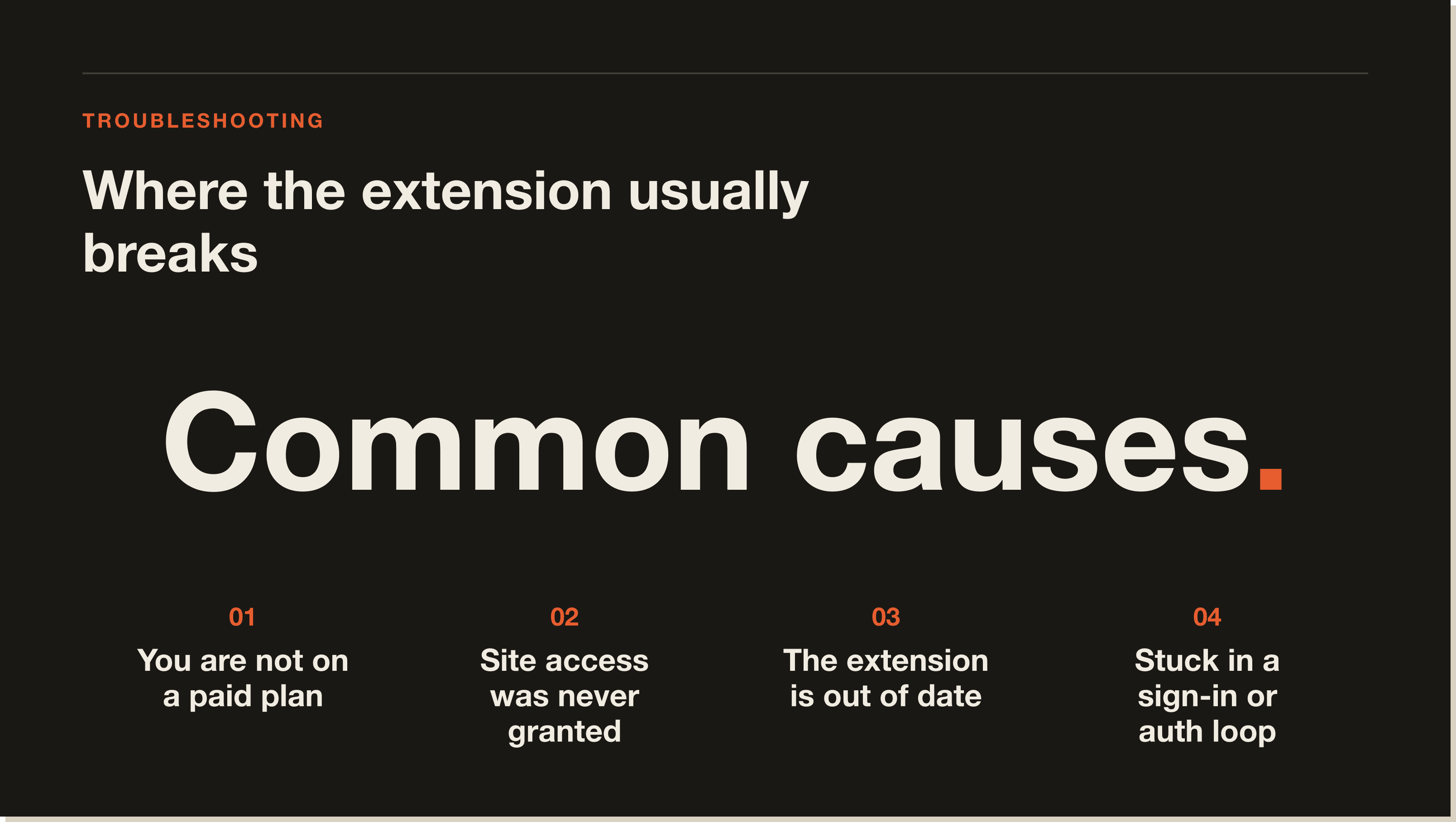
The most common causes are that the extension does not have access to the current page, the account is not on a paid plan, or the extension is stuck on a stale auth session. Grant explicit site access in the extension settings, confirm you are on Pro, Max, Team, or Enterprise, and clear cookies for claude.ai if you are stuck in a sign-in loop.
Claude requires explicit per-site access before it can read page content. Open the extension panel and grant access for the domain you are on. If you have already done that and Claude still reports no access, the site may be in a category Anthropic blocks automatically (financial services, for example) or the page is a Chrome-internal URL where extensions cannot run.
Autonomous mode is only available on paid plans. If you are on a free account, it will always be unavailable. On paid plans, the setting must be enabled in the Claude extension's Settings panel. On Team and Enterprise plans, an admin may have restricted it org-wide.
A persistent sign-in loop usually means a cookie conflict. Clear cookies for claude.ai in Chrome settings, then sign in again. Also confirm you are using the same Chrome profile where the extension is installed. The extension does not share sessions across Chrome profiles.
Yes. The extension requires an active Pro ($20/mo), Max ($100/mo), Team, or Enterprise subscription. Free accounts do not have browser extension access. There is no free trial of the extension separate from a Claude subscription.
Chrome updates occasionally break extension compatibility if the installed version is out of date. Go to chrome://extensions, enable Developer mode, and click Update to force the latest version. Most issues after a Chrome update resolve with a forced extension update and a browser restart.
Yes. Ad blockers and privacy extensions can block requests between the Claude side panel and claude.ai. Test in incognito with other extensions disabled to isolate the conflict. Add claude.ai to your ad blocker's allowlist if that is the cause.
It works on most websites you grant explicit access to. Exceptions: chrome:// internal pages, the Chrome Web Store, and sites Anthropic blocks by policy (financial services, adult content). Dynamic single-page applications sometimes present incomplete DOM content if you prompt before the page finishes loading.
---
Five interactive lessons. Install Claude Code, build your first automation, and deploy it live on the internet — all in under an hour. Free, no coding required.
Grab the Blueprint →